Table of Contents >> Show >> Hide
- Why Command Prompt May Be Hard to Find on School Computers
- 1. Use Windows Search from the Start Menu
- 2. Open It Through the Run Dialog
- 3. Launch It from Task Manager
- 4. Open Windows Terminal and Switch to Command Prompt
- 5. Use School-Approved Alternatives When Local CMD Is Restricted
- What Not to Do on a School Computer
- Best Use Cases for Command Prompt at School
- Final Thoughts
- Student Experiences and Real-World Scenarios
- SEO Tags
If you have ever sat down at a school computer, opened a folder, hit a few keys, and wondered, “Why does this machine act like the Command Prompt is part of a secret society?” you are not alone. On many school-managed Windows devices, the command line is available, but it may be tucked away, replaced by Windows Terminal, or limited by IT policy. That means the real trick is not “hacking it open.” It is knowing the approved, normal ways Windows exposes command-line tools on managed devices.
This guide walks through five legitimate ways to make Command Prompt appear at school, along with what to do if your district, college, or campus IT team has restricted it. No shady workarounds. No dramatic movie montage. Just practical methods, clear explanations, and a smarter understanding of how school computers are usually set up.
Why Command Prompt May Be Hard to Find on School Computers
Before jumping into the five methods, it helps to understand why Command Prompt can seem to vanish on school devices. Many K–12 schools and colleges manage Windows computers with centralized policies. Those policies can hide certain apps, remove admin access, limit software installation, and steer users toward approved tools only.
In plain English, the computer may not be broken. It may simply be doing exactly what the IT department told it to do. On newer Windows 11 devices, there is another wrinkle: Windows Terminal often becomes the main command-line app, which means you may not see the classic black cmd.exe window right away. Instead, the machine may open Terminal first, and from there you can choose Command Prompt if your configuration allows it.
So yes, Command Prompt may be hiding. But it is usually hiding in a very boring, policy-approved, corporate kind of way.
1. Use Windows Search from the Start Menu
The easiest and most school-friendly method is also the least glamorous: search for it.
How to do it
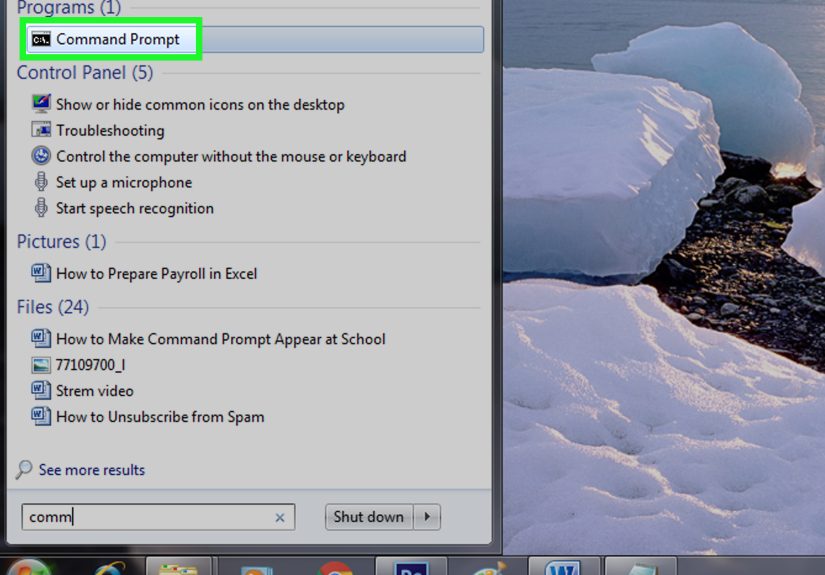
- Press the Windows key, or click the Start button.
- Type Command Prompt or simply cmd.
- Click the result if it appears.
This is the best first move because it works on many Windows 10 and Windows 11 systems, including managed school devices where apps are still visible but not pinned anywhere obvious. If you see Run as administrator, do not assume you should click it. On a school computer, that option usually requires credentials you do not have, and that is normal.
If Command Prompt does not appear, try searching for Terminal or Windows Terminal. On many newer systems, Terminal is the front door, while Command Prompt is one of the rooms inside the house.
When this method works best
This is ideal for students in computer labs, libraries, or classroom carts where the machine is locked down but still allows standard apps. It is also the method that creates the least suspicion because, frankly, it looks like you are using the computer like a normal human being.
2. Open It Through the Run Dialog
If Search is being stubborn, the Run dialog is your next best option. It is one of the classic Windows shortcuts and still works beautifully on many school-managed devices.
How to do it
- Press Windows + R.
- Type cmd.
- Press Enter.
That is it. No fireworks. No hacker hoodie required.
This method is especially useful when the Start menu search is slow, hidden, or restricted. Run is often still available because Windows uses it for all kinds of normal administrative and support tasks. If Command Prompt is permitted for your user account, this shortcut can open it directly.
What if nothing happens?
If you get an error message, or the window closes instantly, that usually points to a policy restriction rather than a typing mistake. In that case, stop there. Do not start hunting for sketchy bypass videos. A school-managed computer is not the place for amateur cyber drama.
3. Launch It from Task Manager
This is the sleeper pick. Task Manager is not just for staring at mysterious memory usage and blaming Chrome. It can also start a new task, including Command Prompt, when that action is allowed by policy.
How to do it
- Press Ctrl + Shift + Esc to open Task Manager.
- If it opens in compact mode, click More details.
- Choose File > Run new task.
- Type cmd.
- Click OK.
This route is handy when the desktop feels half broken, File Explorer is acting moody, or the Start menu is not responding. Because Task Manager is a core Windows utility, it is often still accessible even when other interface elements are misbehaving.
Why students sometimes need this
Imagine a shared classroom laptop where the desktop icons vanish, or a lab computer that signs you in with a temporary profile. Task Manager can sometimes be the most direct path to opening basic tools when the rest of the interface is having a small existential crisis.
That said, if the school has disabled Command Prompt through policy, Task Manager will not magically override that restriction. It is a doorway, not a skeleton key.
4. Open Windows Terminal and Switch to Command Prompt
This is the method many students miss because they are looking for the exact words Command Prompt. On newer Windows systems, especially Windows 11, Windows Terminal may be the default command-line experience.
How to do it
- Open Start and search for Windows Terminal or Terminal.
- Open the app.
- Use the dropdown menu or profile selector inside Terminal.
- Choose Command Prompt if it is available.
Terminal is not the enemy here. It is simply a modern wrapper for command-line shells, including Command Prompt and PowerShell. In some school environments, the classic cmd window may not be pinned or advertised, but Terminal is present because it is the system’s default command-line host.
Command Prompt vs. PowerShell
If Terminal opens to PowerShell instead of Command Prompt, do not panic. For many beginner tasks, PowerShell can do similar work, and in classroom environments it may be the approved shell. If your teacher specifically asked for Command Prompt syntax, check whether a Command Prompt profile is listed in Terminal. If it is not, ask your instructor or lab assistant what shell the assignment expects.
Sometimes the right answer is not “How do I force cmd to show up?” but “Does this course accept Terminal or PowerShell instead?” That question can save you twenty minutes and one unnecessary identity crisis.
5. Use School-Approved Alternatives When Local CMD Is Restricted
Here is the grown-up answer nobody puts in the clicky headline: sometimes the fastest way to make Command Prompt “appear” at school is to use the environment your school already approved.
Option A: Ask IT or your instructor for access
If a class truly requires command-line work, many schools can enable access, push an approved app, or direct you to the right platform. On managed Windows devices, approved software may be distributed through tools such as Software Center or a campus-managed app portal. In some schools, software that is not already available must be installed or approved by a technician.
Option B: Use a remote lab or course server
Many colleges do not expect students to do everything locally on the classroom PC. Instead, they provide remote Linux or UNIX servers for programming classes, sometimes with SSH access, remote desktops, or integrated terminals inside development tools. In that setup, your “command prompt” is not missing. It simply lives on a course server instead of the local machine.
Option C: Use an approved school app portal
Some universities allow students and staff to install approved tools on managed Windows computers without admin rights through school-managed software portals. If your course needs a terminal app, coding environment, or remote access client, there may already be an approved version waiting there.
This method may not sound as exciting as discovering a secret keyboard combo, but it is the one most likely to keep you out of trouble and get your work done on time. And honestly, finishing your assignment beats becoming a legend in the IT help desk notes.
What Not to Do on a School Computer
Let us be crystal clear: if Command Prompt is blocked by policy, that is not an invitation to hunt for registry hacks, exploit videos, portable executables, batch-file tricks, or “one weird loophole” tutorials from the internet’s dusty basement. School acceptable-use rules commonly prohibit attempts to bypass security controls, disable protections, or evade management settings.
That is not just a technical issue. It can become a conduct issue, an account issue, or a disciplinary issue. In other words, the five-minute shortcut can turn into a very long conversation.
If you need command-line access for a class, the smart move is simple: explain the assignment, show the requirement, and ask for the approved path. That is how real troubleshooting works in professional environments too.
Best Use Cases for Command Prompt at School
There are plenty of legitimate reasons students may need Command Prompt or another terminal tool:
- Running beginner programming exercises
- Checking file paths and navigating project folders
- Using classroom-approved compilers or scripts
- Testing basic network commands for IT courses
- Connecting to remote course servers
- Troubleshooting a lab machine under instructor guidance
When used for those purposes, the command line is not suspicious at all. It is just another educational tool, like a spreadsheet, calculator, or very moody printer.
Final Thoughts
If you are trying to make Command Prompt appear at school, start with the simple methods first: Search, Run, Task Manager, and Windows Terminal. On many devices, one of those will work right away. If none of them does, the issue is probably not your keyboard skills. It is likely a school policy decision.
And that is actually useful information. Once you know the limitation is administrative, you can stop wasting time and move to the real solution: asking for approved access, using a course server, or installing school-approved tools through the right channel.
So yes, there are five ways to make Command Prompt appear at school. But the best lesson is bigger than a keyboard shortcut: on managed devices, the fastest path is usually the legitimate one.
Student Experiences and Real-World Scenarios
One of the most common school experiences goes like this: a teacher says, “Open Command Prompt,” and half the room instantly looks confident while the other half types random things into the Start menu like they are trying to summon a wizard. The funny part is that both groups are often using the same locked-down laptop image, and the difference is not skill. It is familiarity. Students who know the basic Windows pathways usually get there fast, while everyone else assumes the computer is broken.
In many school labs, the Start menu method works just fine, but students miss it because they search for “terminal window,” “black screen,” or “computer code app” instead of cmd or Command Prompt. That tiny vocabulary gap can waste valuable class time. Teachers in tech courses often discover that the lesson is not really about coding yet. It is about helping students learn how Windows organizes tools.
Another very real scenario happens on shared computers. You sit down, sign in, and the machine loads a temporary-looking desktop with almost nothing pinned. No familiar shortcuts. No obvious apps. Maybe even a wallpaper that looks like it was chosen by a committee that fears joy. In that kind of environment, Windows + R becomes a lifesaver. Students who know the Run dialog often look like geniuses, when really they just know one excellent shortcut.
Then there is the “Task Manager rescue” situation. Anyone who has used aging school hardware knows the vibe: the Start menu freezes, File Explorer stalls, and the computer sounds like it is thinking about retirement. In those moments, launching Task Manager with Ctrl + Shift + Esc can feel strangely powerful. It is not just for ending apps. It is often the fastest way back to doing actual work when the normal interface gets dramatic.
College students run into a different version of the problem. On newer Windows 11 systems, they search for Command Prompt, but the machine opens Windows Terminal instead. At first that feels wrong, like ordering fries and getting a nicer plate than expected. But after a minute, many realize Terminal is just a more modern entry point. Once they learn where the profile menu is, they stop treating it like a bug and start using it like a tool.
Some of the best experiences, though, happen when students stop fighting the local machine altogether. In programming courses, it is common to use remote lab servers, SSH connections, or school-provided development environments. At first, students may complain that the school computer “doesn’t have Command Prompt.” Later, they realize the course was designed around a remote terminal all along. That shift in mindset matters. It teaches students that computing is not always tied to one physical device in front of them.
Perhaps the biggest lesson from all these experiences is this: most command-line problems at school are not really command-line problems. They are discovery problems, policy problems, or expectation problems. Once students understand that, they waste less time chasing myths and spend more time using the correct tool in the correct environment. Which, in a school setting, is a pretty good upgrade from keyboard panic.