Table of Contents >> Show >> Hide
- What Is a Custom Keyboard Shortcut in Word 2016?
- Why Custom Keyboard Shortcuts Are Worth Using
- How To Create a Custom Keyboard Shortcut in MS Word 2016
- Best Things to Assign Custom Shortcuts To
- How to Choose a Shortcut That Will Not Cause Problems
- How to Remove a Custom Keyboard Shortcut
- How to Reset Keyboard Shortcuts in Word 2016
- Common Mistakes to Avoid
- Practical Examples of Custom Shortcut Ideas
- Real-World Experience: What Using Custom Shortcuts Actually Feels Like
- Final Thoughts
If your daily relationship with Microsoft Word 2016 involves too much clicking, too much ribbon hunting, and at least one dramatic sigh before lunch, custom keyboard shortcuts can help. They are one of those underused Word features that quietly save time without demanding a big learning curve. Once you assign a shortcut to a command you use often, Word starts feeling less like software and more like a well-trained assistant that finally knows what you mean.
Whether you want to apply a style faster, insert a symbol without spelunking through menus, or trigger a favorite command with one quick key combo, Word 2016 gives you room to customize how you work. Better yet, you can save those changes for one document or make them available across future files. That means your workflow can go from “Where is that command again?” to “Done” in about a second and a half.
In this guide, you will learn exactly how to create a custom keyboard shortcut in MS Word 2016, what to assign, what to avoid, how to save changes properly, and how to remove or reset shortcuts if your keyboard experiments get a little too creative.
What Is a Custom Keyboard Shortcut in Word 2016?
A custom keyboard shortcut is a key combination you assign to a command, style, symbol, or other Word feature so you can launch it instantly. Instead of clicking through tabs and menus, you press the shortcut and Word performs the action. Think of it as building your own private VIP entrance to the tools you use most.
This is especially useful in Word 2016 because many writers, editors, students, and office workers repeat the same actions over and over: applying heading styles, opening dialog boxes, inserting special characters, saving as PDF, or formatting text. Word already includes many built-in shortcuts, but custom shortcuts let you fill the gaps when a command you love does not already have a convenient key combination.
Why Custom Keyboard Shortcuts Are Worth Using
Creating a custom Word shortcut may sound like the kind of productivity trick people brag about on the internet while standing next to a whiteboard. In reality, it is practical. Very practical.
Custom keyboard shortcuts in Word 2016 can help you:
- Speed up repetitive formatting tasks
- Reduce mouse travel and menu clicking
- Keep your hands on the keyboard while writing
- Create a more consistent workflow for editing and drafting
- Make complex or buried commands easier to reach
- Work more comfortably if you prefer keyboard-based navigation
Small savings add up fast. Saving just three or four seconds on a task you repeat dozens of times a day can turn into real time, less friction, and fewer “Why is this buried under three tabs?” moments.
How To Create a Custom Keyboard Shortcut in MS Word 2016
Here is the step-by-step process for assigning a custom shortcut in Word 2016 for Windows.
Step 1: Open Word Options
Open Microsoft Word 2016, then click File in the upper-left corner. Choose Options near the bottom of the left-hand menu. This opens the Word Options window, which is basically Word’s control room.
Step 2: Go to Customize Ribbon
In the Word Options window, click Customize Ribbon from the left panel. Do not worry if you are not trying to customize the ribbon itself. The shortcut controls live here too, because Word enjoys keeping important buttons in places you would not guess on the first try.
Step 3: Open the Customize Keyboard Dialog Box
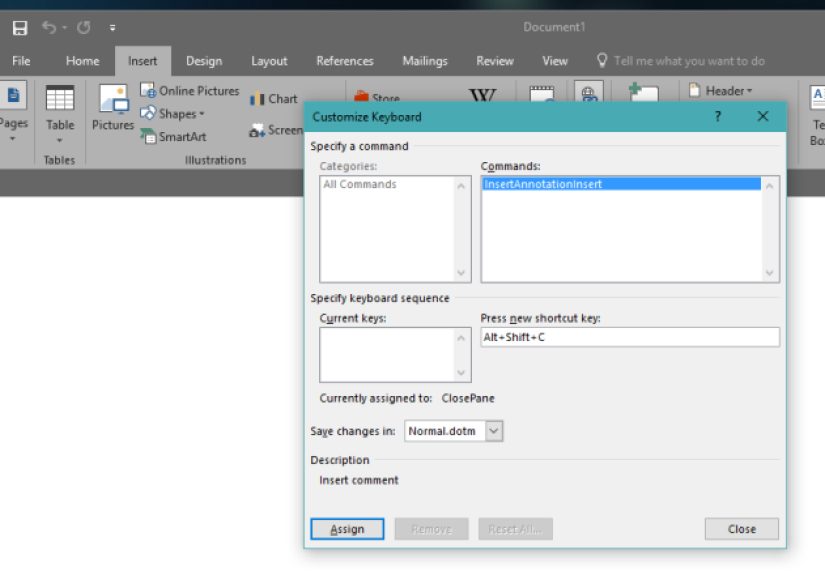
At the bottom of the window, look for Keyboard shortcuts and click Customize. This opens the Customize Keyboard dialog box. This is where the magic happens.
Step 4: Choose a Category
In the left column, you will see Categories. Select the category that contains the command you want to assign. Categories may include common tabs, styles, macros, building blocks, or other groups of commands.
For example, if you want to assign a shortcut to a style-related feature, you would look in the relevant category instead of clicking random items and hoping for divine revelation.
Step 5: Choose the Command
In the right column, select the command you want. When you click a command, Word will show whether it already has a shortcut under Current keys or Currently assigned to. This matters because you do not want to accidentally replace a useful built-in shortcut unless you are absolutely sure.
Step 6: Press Your New Shortcut Key
Click inside the Press new shortcut key box, then press the key combination you want to use. Word will display the combination as you type it.
A few smart rules here:
- Choose something easy to remember
- Avoid widely used built-in shortcuts like Ctrl + C, Ctrl + V, or Ctrl + B
- Pay attention to whether Word says the shortcut is already assigned
- Use combinations that feel natural for the command
For example, if you often save a document as PDF, you might choose a shortcut that reminds you of that action. If you insert a special symbol regularly, tie the shortcut to the symbol in a memorable way.
Step 7: Decide Where to Save the Shortcut
At the bottom of the dialog box, look for Save changes in. This part is important.
- Choose the current document if you want the shortcut to work only in that file.
- Choose Normal.dotm if you want the shortcut available in future documents too.
If you work on your own computer and want your shortcut to become part of your everyday Word setup, Normal.dotm is usually the better choice. If you are creating a shortcut for a one-off project or a shared file, saving it only in the document may be safer.
Step 8: Click Assign
Once everything looks right, click Assign, then click Close, and finally click OK to exit Word Options.
That is it. Your new custom keyboard shortcut in Word 2016 is now ready for action.
Best Things to Assign Custom Shortcuts To
Not every command deserves its own shortcut. Some are too rare. Some already have excellent built-in combinations. The best candidates are the commands you use often, especially the ones buried inside menus or dialog boxes.
1. Styles You Apply Constantly
If you write reports, blog posts, proposals, or long academic documents, styles are your best friend. Assigning shortcuts to commonly used styles can make document formatting faster and more consistent. This is especially handy for headings, custom paragraph styles, or specialty formatting you use repeatedly.
2. Symbols and Special Characters
If your work involves legal symbols, math symbols, accented characters, or typography marks, custom shortcuts can be a lifesaver. Instead of digging through the Symbol menu every time, you can assign a shortcut and move on with your life. Your wrists will not send a thank-you card, but they will be less annoyed.
3. Commands Buried in Menus
Some Word commands are useful but not exactly front and center. These are perfect for custom shortcuts. Examples may include sending a document as PDF, opening a formatting dialog, or launching a specific tool you use frequently.
4. Reusable Text with Quick Parts or AutoText
If you use the same disclaimer, signature block, response template, or boilerplate paragraph often, Quick Parts and AutoText can save the content for reuse. Pair that with a shortcut-based workflow, and repetitive typing becomes much less repetitive.
How to Choose a Shortcut That Will Not Cause Problems
Picking the right shortcut is half the battle. A bad shortcut is like hiding your house key under a rock you can never remember. Technically possible. Not especially helpful.
Use these guidelines:
- Make it memorable: The shortcut should have some connection to the command.
- Avoid conflicts: If Word says the combination is already assigned, think twice.
- Keep it ergonomic: Choose something you can press comfortably.
- Stay consistent: Use a pattern when possible, such as related commands sharing similar combinations.
- Test it immediately: Press the shortcut after assigning it to confirm it works as expected.
One more tip: do not create ten shortcuts in one sitting and expect your fingers to memorize them instantly. Start with two or three high-value shortcuts and build from there.
How to Remove a Custom Keyboard Shortcut
Sometimes a shortcut turns out to be less “brilliant productivity system” and more “Why did I assign that to this key?” Fortunately, removing it is simple.
- Go to File > Options > Customize Ribbon.
- Click Customize next to Keyboard shortcuts.
- Select the category and command.
- In the Current keys box, click the shortcut you want to remove.
- Click Remove.
- Click Close, then OK.
This is useful if you reassigned something by mistake or simply want to clean up your setup.
How to Reset Keyboard Shortcuts in Word 2016
If things get messy, Word gives you the nuclear option: reset all custom keyboard shortcuts. This returns the key assignments to their defaults for the selected template or document.
- Open File > Options > Customize Ribbon.
- Click Customize next to Keyboard shortcuts.
- Click Reset All.
- Confirm the reset.
Use this carefully. Resetting removes custom assignments for the selected location, such as Normal.dotm or the active document. If you built a carefully tuned shortcut system over months, do not click this while sleepy, under-caffeinated, or emotionally compromised by a deadline.
Common Mistakes to Avoid
Overwriting Essential Built-In Shortcuts
Reassigning a familiar shortcut may feel clever in the moment, but it can backfire fast. Replacing something like paste, save, or undo is usually more confusing than helpful.
Saving to the Wrong Place
If your shortcut mysteriously works in one document but not another, the issue is often where you saved it. A shortcut saved only to the current document will not travel magically into every future file.
Creating Too Many at Once
A giant shortcut collection looks impressive until you forget all of it. Focus first on the commands you use daily. A small, reliable set beats a giant list taped to your monitor like a keyboard-themed cry for help.
Ignoring Existing Features
Before making a custom shortcut, check whether Word already has a built-in one. You may not need to reinvent the wheel when the wheel is already sitting there, quietly spinning.
Practical Examples of Custom Shortcut Ideas
Here are a few realistic examples of how people use custom keyboard shortcuts in MS Word 2016:
- Writers and bloggers: assign shortcuts for heading styles, symbols, or insertions used in long-form content
- Students and researchers: create shortcuts for special characters, citation marks, and formatting tools
- Legal professionals: assign shortcuts for section symbols, common clauses, and repetitive formatting tasks
- Office teams: speed up template-based writing, signatures, and reusable internal text
- Editors: set shortcuts for review-related commands and formatting cleanup tools
The best shortcut system is the one built around your actual work, not someone else’s productivity fantasy.
Real-World Experience: What Using Custom Shortcuts Actually Feels Like
Here is the part people do not always mention in tutorials: the first day of using custom keyboard shortcuts in Word 2016 feels slightly awkward. You assign a shortcut, feel like a genius, and then immediately forget it three minutes later. That is normal. The brain needs repetition. Your fingers need trust. And Word, bless it, needs a little patience while you teach it new tricks.
In practice, the biggest improvement is not dramatic speed on day one. It is reduced friction over time. Instead of stopping to scan the ribbon, your hands stay in writing mode. That matters more than most users expect. When you are drafting an article, editing a report, or cleaning up formatting in a long document, every interruption breaks concentration. Custom shortcuts reduce those interruptions. The result is smoother work, not just faster work.
One common experience is realizing which commands truly deserve a shortcut. People often start by assigning shortcuts to random features that sound useful, then discover they only use two of them. The winners are almost always the same kinds of actions: style application, symbol insertion, a favorite formatting command, or a frequently reused text element. In other words, the best shortcuts are not glamorous. They are dependable. They show up every day and do their job without drama, like the office coworker who always knows where the good stapler is.
Another real-world lesson is that Normal.dotm matters more than beginners think. Many users create a shortcut, test it once, celebrate briefly, and then panic the next morning when it does not work in a different file. Usually the shortcut was saved only in the current document. Once you understand the difference between saving to the document and saving to the normal template, the whole feature makes more sense. That small setting determines whether your shortcut is temporary or part of your long-term workflow.
There is also a genuine comfort factor. People who spend hours writing often feel less tired when they rely more on the keyboard and less on constant mouse movement. It is not magic, and it will not turn Word into a tropical vacation, but it does make the software feel less clunky. You move faster, think less about mechanics, and stay closer to the actual content.
Perhaps the most satisfying part is when a custom shortcut becomes automatic. That is the moment the feature stops being a “tip” and starts becoming habit. You stop remembering the tutorial. You stop thinking about the menu path. You simply press the keys, and the result appears. That is when Word 2016 starts working the way power users always hoped it would: quietly, efficiently, and without making you dig through three tabs to do something you do fifty times a week.
Final Thoughts
Learning how to create a custom keyboard shortcut in MS Word 2016 is one of the simplest ways to make Word feel faster, smarter, and more tailored to the way you actually work. The setup takes only a minute, but the payoff can last for years if you save your shortcuts to the right place and use them consistently.
Start with one or two commands you use constantly. Test them. Refine them. Then expand your setup only when a task truly deserves a shortcut. That way, your custom keyboard shortcuts in Word 2016 become a practical system rather than a cluttered experiment.
In the end, this feature is not about pressing fancy key combinations just to feel efficient. It is about removing tiny obstacles from your writing process. And in Word, tiny obstacles have a sneaky way of multiplying. Best to shut that down early.