Table of Contents >> Show >> Hide
- Table of Contents
- Can You Still Enable Flash in Chrome in 2025?
- Quick Check: What Kind of Flash Do You Need?
- Workaround #1: Use a Flash Emulator in Chrome (Ruffle)
- Workaround #2: Run Flash Outside Chrome (Standalone Players)
- Workaround #3: Use a Preservation Launcher (Flashpoint)
- Workaround #4: The “Museum Exhibit” Method (Old Browser in a VM)
- Workaround #5: Modernize Flash Content (For Site Owners & Teams)
- Safety Rules for Flash in 2025
- Troubleshooting: When Flash Content Still Won’t Run
- FAQ
- Extra: of Real-World “Flash in 2025” Experiences
- Conclusion
- SEO Tags (JSON)
Remember Flash? The internet’s old party trick: games, animations, “interactive training modules,” and that one
website your old boss insisted was “mission-critical.” In 2025, trying to enable Flash in Chrome
is like trying to put a cassette tape into an iPhone. Chrome simply doesn’t support Flash anymore.
Butbefore you dramatically whisper “goodbye, childhood”you’ve still got options. The key is to stop thinking
“How do I turn Flash back on in Chrome?” and start thinking “How do I safely run Flash content without turning my
laptop into a museum exhibit… or a malware buffet?”
This guide breaks down easy, practical workarounds for 2025: emulation (the cleanest approach),
preservation platforms (the fun approach), standalone players (the “I have a SWF file” approach), and the
last-resort time machine method (virtualization).
Can You Still Enable Flash in Chrome in 2025?
No. Not in the traditional sense. Modern Chrome versions removed Flash support entirely, so there
is no setting you can flip, no “Allow Flash” prompt to revive, and no magical policy file that brings it back.
If you see a blog claiming “Go to chrome://settings/content/flash,” that’s a nostalgia pieceor
it’s frozen in time like a 2019 meme page. Chrome moved on. Flash did not.
The good news: you can still run Flash content. You just do it through safer, modern approaches like
emulators (best), offline players (situational), or isolated legacy environments (last resort).
Quick Check: What Kind of Flash Do You Need?
Before you pick a workaround, identify what you’re actually trying to run. “Flash” is often shorthand for a few
different things.
1) A Flash game or animation on a website
Best match: Ruffle in Chrome or a preservation library like Flashpoint.
2) A downloaded .swf file (local file)
Best match: Standalone Flash players (or Ruffle desktop) rather than a browser workaround.
3) A legacy work tool (training, dashboards, intranet apps)
Best match: modernize/replace if you control it, or use a virtual machine if you
absolutely can’t.
Once you know which bucket you’re in, the path forward gets a lot less chaoticand your IT department will stop
sighing so loudly in meetings.
Workaround #1: Use a Flash Emulator in Chrome (Ruffle)
If your goal is “I want Flash to work in Chrome,” this is the closest you’ll get in 2025without resurrecting
the original Flash plug-in.
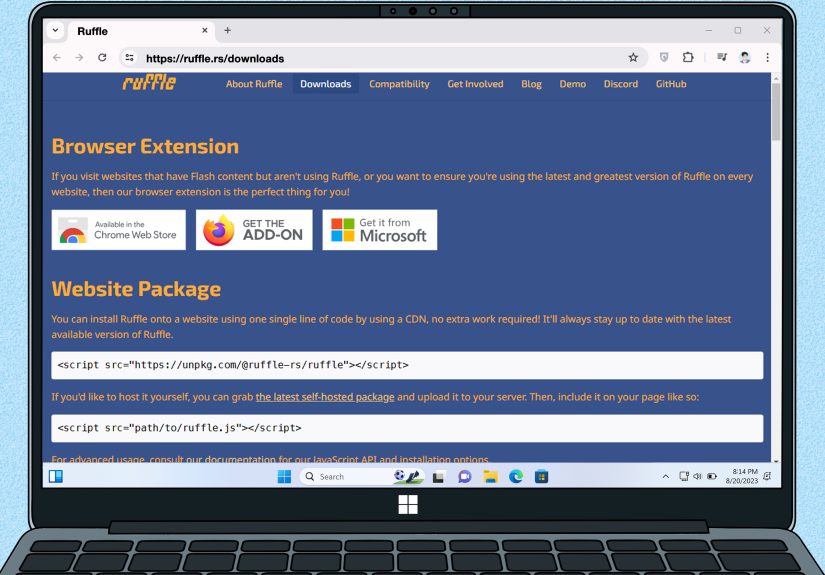
Ruffle is an open-source Flash emulator that runs Flash content using modern browser tech
(WebAssembly). Translation: you get Flash-like playback without installing the original Flash Player.
Safer, easier, and you don’t have to dig through sketchy downloads like you’re hunting treasure in a haunted attic.
How to use Ruffle in Chrome (simple mode)
- Install the official Ruffle extension from the Chrome Web Store.
- Visit the page where the Flash content is embedded.
- If Ruffle supports that content, it will automatically replace the Flash player with its emulator.
- Refresh the page if the content doesn’t load on the first try.
What Ruffle is great at (and where it can struggle)
- Great at: many classic web animations and older games (often ActionScript 1/2).
- Still improving: more complex content, newer ActionScript 3 projects, and multi-file games.
- Not a guarantee: some enterprise/internal Flash apps may rely on features that emulators don’t fully replicate.
Pro tip: Use Ruffle for “nostalgia browsing,” not mission-critical work
For games and archives? Amazing. For a compliance training module your company hasn’t updated since the Great
Recession? You may need a different workaround (see the VM method below).
Workaround #2: Run Flash Outside Chrome (Standalone Players)
Sometimes you don’t need Flash inside Chrome at all. If you have a .swf file or a site provides
a dedicated player, the easiest workaround is to run Flash content outside the browser.
Option A: Use a dedicated content player (example: Newgrounds Player)
Some platforms built standalone players specifically to preserve their libraries. A well-known example is
Newgrounds Player, which helps you run classic content in a controlled desktop environment.
- Install the official player from the platform’s site.
- Launch the player and open content through the platform’s interface.
- Keep it updatedpreservation tools evolve, and compatibility improves over time.
Option B: Use a standalone “projector-style” player for local SWF files
If your situation is “I have a SWF file from an old course, CD-ROM, or archive,” you may be able to run it using
a standalone player that opens SWF files directly.
Safety note: In 2025, you should be extremely picky about where you get old Flash runtimes.
Prefer trusted archives, reputable preservation communities, or vendor-backed tools. Random “Flash download”
sites are the internet equivalent of eating gas-station sushi on a road trip: technically food, spiritually risky.
Option C: Use Ruffle Desktop for local SWF files
If you’re already using Ruffle in Chrome, consider the desktop build for SWF playback. It keeps you on the emulator
path (which is generally safer than reviving the original plug-in).
Workaround #3: Use a Preservation Launcher (Flashpoint)
If your main goal is playing old Flash games and watching classic animations, a preservation launcher can be
the most painless route.
Flashpoint is a well-known preservation project that curates huge libraries of web games and
animations (Flash and other legacy web tech). Instead of trying to “enable Flash in Chrome,” Flashpoint handles
the compatibility layer for you.
Why Flashpoint is so popular
- One launcher, lots of content: browse and run preserved titles without hunting files manually.
- Offline-friendly: great for nostalgia (or long flights where Wi-Fi is a myth).
- Better organization: search, filters, categorieslike a streaming service for retro web games.
Best use cases
Flashpoint shines for entertainment libraries. If you’re trying to run a corporate SWF dashboard that connects to
an internal server, this probably isn’t the tool. But for “I miss that one tower defense game,” it’s a winner.
Workaround #4: The “Museum Exhibit” Method (Old Browser in a VM)
This is the last-resort option for people stuck with legacy business systems: old training portals, antique
reporting tools, or an internal app that someone swears they’ll replace “next quarter” (a phrase that has meant
“never” since 2008).
The idea: run an older browser in a virtual machine (VM) or isolated environment,
so your main computer stays protected.
How to do it safely (basic checklist)
- Create a VM using a reputable virtualization tool.
- Install an older OS/browser environment only inside the VM.
- Snapshot the VM before testing. If something goes wrong, you roll back like it never happened.
- Limit internet access (or block it entirely) unless the app truly requires network connectivity.
- Use the VM only for the legacy appdon’t browse random sites like it’s your daily driver.
Why a VM beats “just install an old browser on my laptop”
Flash was historically a frequent target for exploitation, and an unpatched legacy setup can be vulnerable.
Isolation reduces risk. Think of it like handling a cactus: gloves are optional until you touch it.
Workaround #5: Modernize Flash Content (For Site Owners & Teams)
If you maintain the site or application, the best workaround isn’t a workaroundit’s an upgrade. Flash is end-of-life,
and modern browsers aren’t going to change their minds in 2025 just because your content is “really cool.”
Common replacement paths
- Animations: export/rebuild into HTML5 Canvas, SVG, or video.
- Video players: migrate to modern HTML5 video formats.
- Interactive apps: rebuild using JavaScript frameworks, WebGL, or WebAssembly when needed.
A practical modernization strategy
- Inventory what still depends on Flash (pages, SWF files, user flows).
- Rank by importance (mission-critical vs. “nice-to-have nostalgia”).
- Pick a target tech (HTML5 Canvas, JS, video, etc.).
- Retire or archive content that no longer serves a purpose.
Modernization costs time, but it’s the only path that scales. If your business still relies on Flash, your real
problem isn’t Chromeit’s technical debt with a cape on.
Safety Rules for Flash in 2025
Running legacy tech can be fine if you treat it like legacy tech. Here’s the “don’t panic, but don’t be reckless”
playbook:
- Prefer emulation (Ruffle) over reviving the original Flash plug-in.
- Use trusted sources for preservation tools and avoid random download sites.
- Isolate legacy setups (VMs, offline mode, dedicated machine) if you must use old runtimes.
- Don’t browse the open web in a legacy environment.
- Snapshot early, snapshot often if you’re using a VM.
- Scan files you download, especially old SWFs from unknown origins.
The goal is to enjoy old content without inviting 2012-era security problems into your 2025 life.
Troubleshooting: When Flash Content Still Won’t Run
Problem: “Ruffle doesn’t work on this site.”
That usually means the content uses features Ruffle doesn’t fully support yet (often complex ActionScript 3).
Try a different workaround: a dedicated player, Flashpoint (for games), or a VM for enterprise tools.
Problem: “My SWF opens but nothing happens.”
Some projects load additional files (more SWFs, audio, or data). Keep all related files in the same folder and
avoid renaming them unless you know what you’re doing.
Problem: “It worked years ago, now it’s blank.”
Some legacy content depended on servers, APIs, or domains that no longer exist. In those cases, you may be able
to run it only if you also recreate or replace the missing backendat which point modernization becomes the real fix.
Problem: “I’m trying to run a corporate Flash app and IT says no.”
That’s not personal. It’s risk management. Propose an isolated VM solution or, better yet, propose replacing the
app with a modern equivalent. You’ll sound like the hero, not the person asking to resurrect a security nightmare.
FAQ
Why did Chrome remove Flash completely?
Flash reached end-of-life and stopped receiving security updates. Browser vendors phased it out because it was
outdated, risky, and modern web standards replaced most of its use cases.
Is there any “hidden setting” to re-enable Flash in Chrome?
Not in modern Chrome. If you see “Flash settings,” those instructions are for older versions and no longer apply.
What’s the safest way to play old Flash games in 2025?
Start with Ruffle (browser emulation) or a reputable preservation platform like Flashpoint. Avoid installing random
Flash plug-ins or unknown “Flash enablers.”
What should businesses do with Flash-based training or internal apps?
Short term: isolate the legacy app in a VM or controlled environment. Long term: replace it. Flash is not coming back,
and security expectations won’t get easier.
Extra: of Real-World “Flash in 2025” Experiences
People usually arrive at the “enable Flash in Chrome” problem in one of three moods: nostalgic, annoyed, or mildly
panicked. The nostalgic group just wants to replay a childhood game, watch a classic animation, or prove to a friend
that the internet used to be weirder (and somehow more sincere). For them, the biggest surprise is that the best fix
isn’t a complicated Chrome settingit’s simply using Ruffle or a preservation library. Once they realize emulation is
the new “Flash button,” the whole ordeal goes from frustrating to funny. Like, “Oh, I spent 45 minutes googling a
setting that doesn’t exist. Cool. Love that for me.”
The annoyed group is usually dealing with legacy content at work: an old learning module, a long-forgotten vendor portal,
or a training course that someone paid good money for back when flip phones roamed the earth. The pattern is predictable:
a new employee joins, clicks a link, gets a blank box where a SWF used to be, and suddenly there’s a Slack thread titled
“FLASH???” in all caps. The best teams handle it calmly: they isolate the need (is it one course or an entire system?),
then pick a safe short-term bridge (often a VM) while planning a real replacement. The worst teams do the opposite: they
try to “just make Chrome do it,” burn days chasing outdated tutorials, and accidentally reinvent the concept of technical
debtagain.
The mildly panicked group is the most interesting, because they’re often responsible for something “important” that still
depends on Flash. Think: a kiosk display in a warehouse, an internal dashboard that “only runs on that one machine,” or a
manufacturing training app that hasn’t been touched in years. In these cases, the experience usually teaches two lessons.
First: isolation is not optional. Running legacy software on a primary workstation is how you turn a simple compatibility
problem into a security incident. Second: modernization is cheaper than denial. The moment you add up the time spent
maintaining a fragile Flash environmentspecial machines, special browsers, “don’t update this PC” rulesyou realize you’re
paying a subscription fee to the past.
The funniest part? Once people adopt the right workaround, the emotional temperature drops immediately. Ruffle makes casual
content feel easy again. Flashpoint makes old games feel curated instead of “lost.” A VM makes enterprise legacy apps feel
contained rather than contagious. And the moment a team modernizes their Flash content, they stop asking “How do we enable
Flash in Chrome?” and start asking better questionslike “How did we let this live until 2025?” which is the first step
toward never repeating the same story with some future relic. (Looking at you, whatever replaces browser extensions in 2035.)