Table of Contents >> Show >> Hide
- What Is the UNEXPECTED KERNEL MODE TRAP Error?
- Common Causes of the UNEXPECTED KERNEL MODE TRAP Error
- Before You Start: Do These Quick Safety Steps
- How to Fix the UNEXPECTED KERNEL MODE TRAP Error
- Method 1: Restart and Disconnect New Hardware
- Method 2: Boot Into Safe Mode
- Method 3: Update Windows
- Method 4: Update or Roll Back Device Drivers
- Method 5: Run Windows Memory Diagnostic
- Method 6: Disable Overclocking and Reset BIOS Settings
- Method 7: Run DISM and SFC to Repair System Files
- Method 8: Check Your Drive With CHKDSK
- Method 9: Scan for Malware
- Method 10: Uninstall Recent Windows Updates
- Method 11: Use System Restore
- Method 12: Use Driver Verifier Carefully
- Method 13: Reset or Reinstall Windows
- What If Windows Will Not Boot?
- How to Prevent the Error From Coming Back
- Real-World Experiences: What Usually Works Best
- Conclusion
Note: This guide is based on real Windows troubleshooting methods, including official Microsoft repair tools, common hardware diagnostics, and practical PC repair workflows. Source links are omitted for clean web publishing.
What Is the UNEXPECTED KERNEL MODE TRAP Error?
The UNEXPECTED KERNEL MODE TRAP error is a Windows blue screen error that usually appears with the stop code 0x0000007F. It sounds like something a sci-fi villain would shout before taking over your motherboard, but the meaning is simpler: Windows ran into a serious problem in kernel mode and could not safely continue.
Kernel mode is the highly protected area where Windows, hardware drivers, memory management, and core system processes operate. When something goes wrong there, Windows does not politely say, “Hmm, let me keep going.” It stops everything to protect your files and hardware from deeper damage. That emergency stop is what you see as the blue screen of death, or on newer Windows 11 builds, sometimes a simplified black crash screen.
The error can happen on Windows 11, Windows 10, and older versions of Windows. In many cases, it points to one of four suspects: faulty or unstable RAM, outdated or corrupted drivers, system file corruption, or hardware instability caused by overheating, overclocking, or failing components.
The good news? This error is fixable in many cases. You do not need to throw your laptop into a drawer and pretend tablets are the future. You just need a calm troubleshooting order, because randomly clicking buttons in panic mode is how a small driver issue becomes a weekend project.
Common Causes of the UNEXPECTED KERNEL MODE TRAP Error
Before fixing the problem, it helps to understand what may have triggered it. The UNEXPECTED KERNEL MODE TRAP stop code often appears after a recent system change, but it can also show up without warning if hardware is beginning to fail.
1. Faulty or Unstable RAM
RAM problems are one of the classic causes of this error. If your memory module has bad sectors, is seated poorly, or is running at an unstable speed, Windows may crash when it tries to access protected memory. This is especially common after installing new RAM, enabling XMP or EXPO memory profiles, or building a custom PC.
2. Corrupted or Incompatible Drivers
Drivers allow Windows to communicate with hardware such as graphics cards, Wi-Fi adapters, printers, chipsets, audio devices, and storage controllers. A buggy graphics driver or outdated network driver can trip the system at the kernel level. If the error started after installing new hardware or updating a driver, that is a major clue.
3. Damaged System Files
Windows relies on protected system files to boot, update, and manage hardware correctly. If those files become corrupted because of failed updates, sudden shutdowns, disk errors, or malware, blue screen errors can appear.
4. Hard Drive or SSD Problems
A storage drive with file system errors, failing sectors, or unstable firmware can cause Windows to read bad data. That bad data may lead to crashes, especially during startup, updates, gaming, video editing, or large file transfers.
5. Overheating or Overclocking
Overclocking the CPU, GPU, or RAM can improve performance, but unstable settings can cause blue screens. Heat is another troublemaker. A dusty laptop fan or poorly mounted CPU cooler can turn your PC into a tiny toaster with a keyboard.
6. Malware or Low-Level Security Conflicts
Malware can damage system files or interfere with drivers. Security software, VPN drivers, disk encryption tools, and older anti-malware components can also create conflicts if they run deeply in the system.
Before You Start: Do These Quick Safety Steps
If Windows still boots, back up your important files before making major changes. Copy documents, photos, browser exports, work files, and anything you cannot replace. A blue screen repair usually goes smoothly, but storage and memory problems can become worse without much warning.
Next, write down when the error happens. Does it appear during startup? After gaming? When waking from sleep? Right after a Windows update? When connecting a USB device? A pattern can save hours of troubleshooting.
Also check the exact stop code and any file name shown on the crash screen. For example, a file ending in .sys may point toward a driver. A message involving a network adapter, graphics driver, or storage controller gives you a starting point.
How to Fix the UNEXPECTED KERNEL MODE TRAP Error
Method 1: Restart and Disconnect New Hardware
Start with the simple fix. Restart the computer and unplug any recently added hardware: external drives, docking stations, webcams, printers, USB hubs, capture cards, or new internal components. If the error disappears, reconnect devices one by one until the crash returns.
This may sound too easy, but hardware conflicts are real. A failing USB device or incompatible driver can crash Windows faster than you can say, “It was working yesterday.”
Method 2: Boot Into Safe Mode
Safe Mode starts Windows with only essential drivers and services. If your PC works in Safe Mode but crashes during normal startup, the problem is likely a third-party driver, startup app, or background service.
To enter Safe Mode in Windows 11 or Windows 10:
- Hold Shift and select Restart from the Start menu power options.
- Go to Troubleshoot > Advanced options > Startup Settings.
- Select Restart.
- Press 4 or F4 for Safe Mode, or 5 or F5 for Safe Mode with Networking.
Once inside Safe Mode, uninstall recently added apps, remove suspicious drivers, or run system scans. If the computer refuses to boot normally but behaves in Safe Mode, you have narrowed the battlefield.
Method 3: Update Windows
Windows updates often include security patches, driver fixes, compatibility improvements, and system reliability updates. To check for updates, open Settings > Windows Update and select Check for updates.
Install available updates, restart your PC, and test again. Do not skip the restart. Windows updates without a restart are like laundry left in the washer: technically done, but not really finished.
Method 4: Update or Roll Back Device Drivers
Drivers are a top cause of the UNEXPECTED KERNEL MODE TRAP Windows 11 and Windows 10 error. Pay special attention to graphics, chipset, storage, Wi-Fi, Bluetooth, and audio drivers.
To update a driver through Device Manager:
- Right-click Start and choose Device Manager.
- Expand the category for the device you want to update.
- Right-click the device and choose Update driver.
- Select Search automatically for drivers.
For graphics cards and gaming PCs, visit the manufacturer’s website, such as NVIDIA, AMD, Intel, Dell, HP, Lenovo, ASUS, MSI, or your motherboard maker. Manufacturer drivers are often newer than the ones offered through Windows Update.
If the error started after a driver update, roll it back:
- Open Device Manager.
- Right-click the device and choose Properties.
- Open the Driver tab.
- Select Roll Back Driver if the option is available.
Method 5: Run Windows Memory Diagnostic
Because RAM issues are strongly linked to this stop code, test your memory early. Windows includes a built-in tool called Windows Memory Diagnostic.
Here is how to use it:
- Press Windows + S and search for Windows Memory Diagnostic.
- Select Restart now and check for problems.
- Let the scan run after the computer restarts.
- After Windows loads again, check the results in Event Viewer if they do not appear automatically.
If the test reports memory errors, shut down the PC and reseat the RAM if you are comfortable opening the case. Test one RAM stick at a time if your desktop has multiple modules. For laptops, check the manufacturer’s service manual before touching anything inside.
If you recently enabled XMP or EXPO in BIOS or UEFI, turn it off temporarily. Memory profiles can be stable on paper but fussy in real life, like a printer five minutes before a deadline.
Method 6: Disable Overclocking and Reset BIOS Settings
Overclocking can make a PC faster, but unstable voltage, memory timing, or CPU frequency settings can trigger kernel crashes. Restart your PC and enter BIOS or UEFI setup. The key varies by brand, but common keys include F2, Delete, Esc, or F10.
Inside BIOS, look for options such as:
- Load Optimized Defaults
- Load Setup Defaults
- Disable XMP
- Disable EXPO
- Reset CPU overclock
Save changes and restart. If the crashes stop, the hardware may be healthy, but your performance settings were too aggressive.
Method 7: Run DISM and SFC to Repair System Files
Windows includes two powerful repair tools: DISM and System File Checker. DISM repairs the Windows component store, and SFC scans protected system files. Run DISM first, then SFC.
Open Command Prompt as administrator and enter:
Wait until the process completes. Then run:
Do not close the window while the scan is running. If SFC says it found and repaired corrupted files, restart the PC and test again. If it says it could not repair some files, run the scan again in Safe Mode.
Method 8: Check Your Drive With CHKDSK
Disk errors can contribute to blue screen problems, especially if Windows cannot read important system files correctly. To check the system drive, open Command Prompt as administrator and run:
Windows may say the drive is in use and ask whether you want to schedule the scan for the next restart. Type Y, press Enter, and restart the PC.
The /f option fixes file system errors, while /r looks for bad sectors and attempts to recover readable information. This scan can take a long time, especially on large drives, so do not start it five minutes before a meeting unless you enjoy explaining “my computer is thinking deeply” to everyone.
Method 9: Scan for Malware
Malware can damage system files, install bad drivers, or interfere with boot processes. Open Windows Security, go to Virus & threat protection, and run a full scan.
For deeper checking, use Microsoft Defender Offline scan. This restarts the PC and scans before Windows fully loads, which helps detect threats that hide while the operating system is running.
To run it:
- Open Windows Security.
- Select Virus & threat protection.
- Choose Scan options.
- Select Microsoft Defender Antivirus Offline scan.
- Click Scan now.
Method 10: Uninstall Recent Windows Updates
If the crash started immediately after a Windows update, uninstalling the latest update may help. Go to Settings > Windows Update > Update history > Uninstall updates. Remove the most recent quality update, restart, and test your PC.
If Windows will not boot, use Windows Recovery Environment:
- Start the PC and interrupt startup several times, or boot from recovery media.
- Select Troubleshoot.
- Choose Advanced options.
- Select Uninstall Updates.
- Choose the latest quality update or feature update.
This is not a permanent excuse to avoid updates forever. It is a troubleshooting step. Once the PC is stable, install newer fixed updates when available.
Method 11: Use System Restore
System Restore can return Windows system files, drivers, and settings to an earlier working state without deleting personal files. It is especially useful if the error appeared after installing a driver, update, or application.
To use it:
- Press Windows + R.
- Type rstrui.exe and press Enter.
- Select a restore point from before the error began.
- Follow the prompts and restart.
If Windows does not boot, open Advanced options in Windows Recovery Environment and choose System Restore.
Method 12: Use Driver Verifier Carefully
Driver Verifier is an advanced Windows tool that stresses drivers to expose faulty ones. It can be helpful, but it can also intentionally trigger crashes when it detects bad driver behavior. Use it only if you are comfortable with Safe Mode and recovery options.
To start Driver Verifier, search for verifier from the Start menu and run it as administrator. Choose standard settings and test non-Microsoft drivers. If Windows crashes repeatedly after enabling it, boot into Safe Mode and run this command as administrator:
Then restart. Driver Verifier is useful for technicians and advanced users, but beginners should treat it like hot sauce: helpful in small amounts, painful if you pour it everywhere.
Method 13: Reset or Reinstall Windows
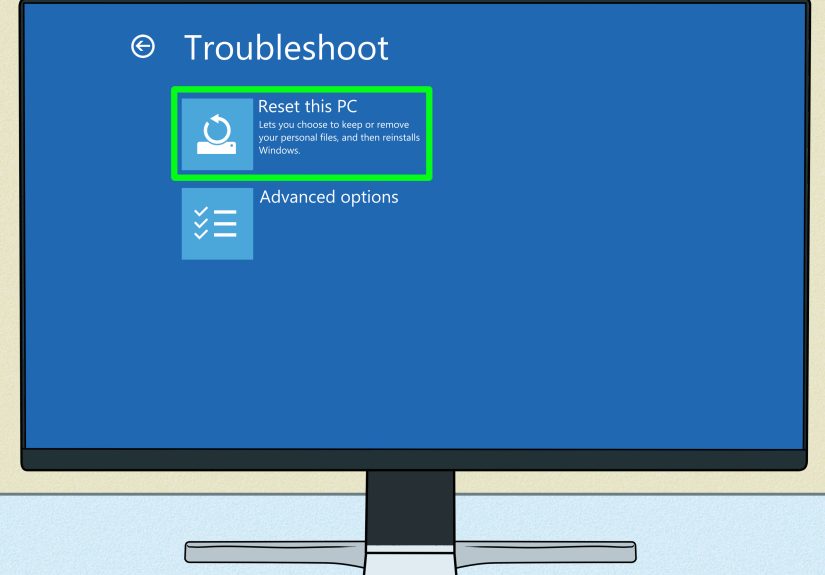
If nothing else works, use Windows recovery options. Go to Settings > System > Recovery and choose Reset PC. You can choose to keep personal files, but apps and settings will be removed. Always back up important files first.
Windows 11 also offers repair options through Windows Update on supported systems, allowing you to reinstall the current version of Windows while keeping files, apps, and settings in many cases. If the system is badly damaged, a clean installation from USB media may be the most reliable final step.
What If Windows Will Not Boot?
If the PC keeps crashing before you reach the desktop, use the Windows Recovery Environment. Turn the PC on and off during startup two or three times until Windows opens automatic repair. Then choose Advanced options.
From there, try these in order:
- Startup Repair to fix boot problems automatically.
- Safe Mode to remove drivers or apps.
- Uninstall Updates if the issue started after an update.
- System Restore if you have restore points.
- Command Prompt for DISM, SFC, or CHKDSK repairs.
- Reset this PC if repair attempts fail.
If none of these options work, create Windows installation media on another computer and boot from the USB drive. From there, you can repair Windows or reinstall it.
How to Prevent the Error From Coming Back
After fixing the UNEXPECTED KERNEL MODE TRAP error, take a few preventive steps. Keep Windows updated, but avoid installing optional drivers unless they solve a real problem. Update graphics and chipset drivers from trusted manufacturer websites. Do not use random driver updater tools that promise miracles and deliver pop-ups.
Keep your PC cool. Clean dust from vents, make sure fans spin properly, and use a hard flat surface for laptops. If you built your PC, check that the RAM is seated correctly and that BIOS settings are stable.
Create restore points before major driver updates, BIOS updates, or hardware changes. Also keep regular backups. A backup turns a computer disaster into an inconvenience, which is much better for your blood pressure.
Real-World Experiences: What Usually Works Best
In real troubleshooting situations, the UNEXPECTED KERNEL MODE TRAP error rarely has one magical fix. It usually has a story. The trick is to read the story in the right order. One common example is the new-RAM scenario. A user upgrades from 16GB to 32GB, everything looks fine for a day, and then the blue screen appears while gaming or opening too many browser tabs. The first instinct is to blame Windows, because Windows is conveniently sitting there looking guilty. But after running a memory test or disabling XMP, the crashes stop. In that case, the operating system was not the villain. It was unstable memory timing.
Another common experience involves graphics drivers. A PC may crash after a GPU driver update, especially during games, video editing, 3D rendering, or external monitor use. Rolling back the driver or installing a clean version from the graphics card manufacturer often fixes the problem. This is why checking the timeline matters. If the PC was stable on Monday, got a driver update on Tuesday, and started crashing on Wednesday, the calendar is practically waving a little red flag.
Older laptops often tell a different story. They may show the error during startup, after waking from sleep, or when running several programs at once. In those cases, heat and aging storage are common suspects. A laptop clogged with dust can overheat quickly, and an older SSD or hard drive with errors can cause Windows to stumble when loading system files. Running CHKDSK, checking drive health with the manufacturer’s tool, and cleaning vents can make a surprising difference.
Some users fix the error by uninstalling a recent Windows update, but this should be treated as a short-term solution. Updates sometimes expose old driver problems rather than directly causing them. For example, a security update may change how Windows handles a device driver, and an outdated driver that was already shaky finally falls over. The better long-term move is to update the affected device driver or replace unsupported hardware.
Security software can also be part of the story. Antivirus tools, VPN clients, firewall software, and disk encryption programs often install low-level drivers. Most are safe, but older versions can conflict with Windows updates or other system components. If crashes begin after installing one of these tools, remove it temporarily and test. If the crash stops, install the latest version or choose another product.
The most reliable repair pattern is simple: start with recent changes, then test memory, then repair system files, then check storage, then examine drivers. This order avoids wasted time. Reinstalling Windows before testing RAM, for example, is like repainting a house because the smoke alarm is beeping. It might feel productive, but it misses the real problem.
The best experience-based advice is this: do not chase ten fixes at once. Make one change, restart, and test. Keep notes. If you update three drivers, disable XMP, uninstall two apps, and run three repair tools all in one sitting, you may fix the issue but never know what solved it. That makes the next crash harder to diagnose. Patient troubleshooting wins here. The computer may be dramatic, but you do not have to be.
Conclusion
The UNEXPECTED KERNEL MODE TRAP error can look intimidating, but it usually points to a fixable problem involving RAM, drivers, system files, storage, overheating, or a recent update. Start with the easiest steps: disconnect new hardware, boot into Safe Mode, update or roll back drivers, and install Windows updates. Then move to deeper repairs such as Windows Memory Diagnostic, DISM, SFC, CHKDSK, malware scanning, System Restore, and recovery options.
If your PC crashes repeatedly, pay close attention to timing. A blue screen after new RAM, a new graphics driver, or a Windows update is not random trivia; it is a clue. Follow the clues calmly, and your computer has a much better chance of returning to normal without a full reinstall.