Table of Contents >> Show >> Hide
- Quick reality check: what usually works (and why)
- Before you start: two things that can block you
- The 12 Steps
- Confirm what you’re using (and update it)
- Figure out what kind of EPUB you have
- Choose your goal: Kindle library vs. simple file reading
- (Path A) Find your Send-to-Kindle email address
- (Path A) Approve the email address you’ll send from
- (Path A) Send the EPUB using email (the simplest method)
- (Path A) Sync the Kindle app and download the book
- (Path B) Install an EPUB reader app from the Amazon Appstore
- (Path B) Put the EPUB where your reader app can find it
- (Optional) Add Google Play for even more reader apps
- (Path C) Convert EPUB to a Kindle-friendly format using Calibre
- (Path C) Transfer the converted book to your Fire tablet and open it
- Troubleshooting: when your EPUB acts like it didn’t hear you
- Real-world experiences: what it’s like living with EPUBs on a Fire tablet (about )
- Conclusion
So you’ve got an EPUB file (the “universal remote” of ebooks) and a Kindle Fire (now usually called an
Amazon Fire tablet). You tap the file expecting magic… and your tablet acts like you handed it a VHS tape.
Here’s the good news: your Fire tablet can read EPUBs. The slightly annoying news: the Kindle reading app
doesn’t always treat a raw EPUB file like a first-class citizen. The workaround is easy once you know which lane you’re in:
Send to Kindle (Amazon converts and syncs it), a third-party EPUB reader app (reads EPUB directly),
or Calibre (convert and transfer for more control).
Quick reality check: what usually works (and why)
-
Best “I want this in my Kindle library” method: Send to Kindle. It uploads the EPUB, converts it to a Kindle-friendly format,
and syncs it to your Kindle app. - Best “I just want to open this file right now” method: Install an EPUB reader app from the Amazon Appstore and open the EPUB directly.
- Best “I’m picky about formatting” method: Convert with Calibre (usually to AZW3) and transfer it to the tablet.
Before you start: two things that can block you
1) DRM (copy protection) can change everything
If your EPUB came from a retailer or library system, it may be protected by DRM. That can limit which apps can open it.
Don’t try to “hack” DRMuse the official app/service that delivered the book (or check if your library offers a “Read with Kindle” option).
For DRM-free EPUBs (Project Gutenberg, author freebies, BookFunnel downloads, your own files), you’ve got way more flexibility.
2) “Kindle Fire” is basically Android… with Amazon’s rules
Fire tablets run Fire OS (Amazon’s flavor of Android). You can install apps from the Amazon Appstore easily.
You can also add Google Play on many models, but you don’t need that for most EPUB-reading setups.
The 12 Steps
-
Confirm what you’re using (and update it)
On your Fire tablet, install pending updates for Fire OS and update the Kindle app from the Appstore.
This prevents the classic tech support moment where the fix is “it works after the update you avoided for six months.” -
Figure out what kind of EPUB you have
Ask yourself: where did this file come from?
- Likely DRM-free: public-domain sites, author giveaways, school files, personal exports.
- Possibly DRM-protected: retail purchases outside Amazon, some library downloads, subscription services.
If it’s DRM-protected, your most reliable option is usually the provider’s official app (Kobo, Nook, etc.) rather than trying to force it into Kindle.
-
Choose your goal: Kindle library vs. simple file reading
Pick one path:
- Path A: “I want it inside the Kindle app, synced like a normal Kindle book.” → Use Send to Kindle.
- Path B: “I just want to open the EPUB and read.” → Install an EPUB reader app.
- Path C: “I want more control over formatting and features.” → Use Calibre to convert + transfer.
You can do more than one. You’re allowed. This is a judgment-free reading zone.
-
(Path A) Find your Send-to-Kindle email address
Every Kindle device/app tied to your Amazon account can have a unique “Send-to-Kindle” email address. You can usually find it:
- In the Kindle app: open the app menu → Settings → look for Send-to-Kindle Email Address.
- On Amazon’s website: go to your account’s device/content settings and look under personal document settings.
Write it down (or screenshot it). You’ll use it again, like a password… except it’s actually useful.
-
(Path A) Approve the email address you’ll send from
Amazon often requires that documents sent to your Kindle come from an approved email address.
Add the email you’ll send from (Gmail, Outlook, etc.) to your Approved Personal Document Email List in your Amazon settings.If you skip this, your EPUB may bounce like it tried to enter a club wearing flip-flops.
-
(Path A) Send the EPUB using email (the simplest method)
Create a new email to your Kindle address and attach the EPUB. Keep the subject line simple (or blank).
Then send it.- Tip: If you’re sending multiple files, keep an eye on attachment limits.
- Tip: If delivery is slow, try sending one EPUB at a time to test the pipeline.
-
(Path A) Sync the Kindle app and download the book
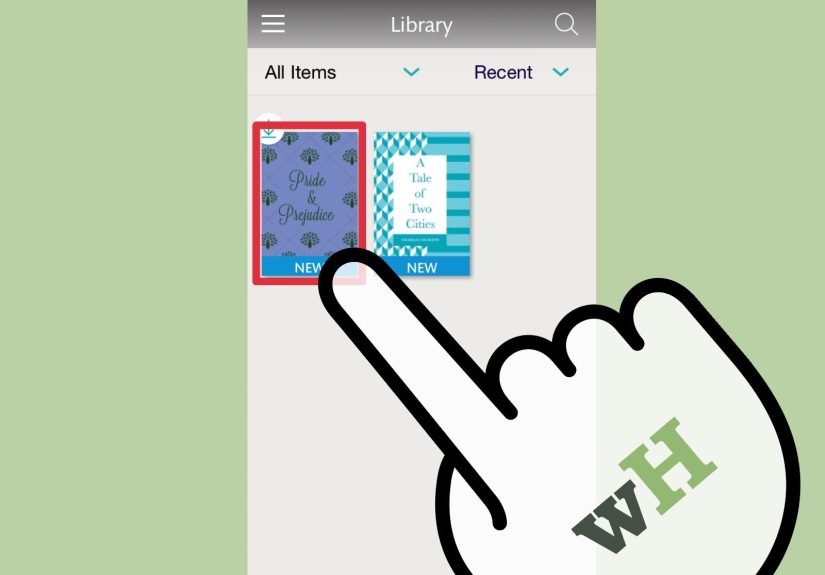
Open the Kindle app on your Fire tablet, pull down to sync (or tap Sync if shown),
then check your Library. Your document may appear under a filter like “Docs” or “Documents.”Tap it once to download. Then you can read offline, highlight, change fontsbasically do all the cozy reading things.
-
(Path B) Install an EPUB reader app from the Amazon Appstore
If you want to open EPUB files directly (no conversion, no waiting), install a dedicated reader.
Popular options often available for Fire tablets include apps like Bluefire Reader and Moon+ Reader.After installing, open the app and grant it permission to access files when prompted. (Yes, it’s annoying. Yes, it’s normal.)
-
(Path B) Put the EPUB where your reader app can find it
You’ve got two easy ways:
- Download directly on the tablet: use Silk browser, download the EPUB, then open it from the download notification (or your Files/Docs app).
- Transfer from a computer: connect your Fire tablet by USB, choose File Transfer, and copy the EPUB into a folder like “Books” or “Documents.”
Then open your EPUB reader app → “Import” / “Scan” / “Add books” → select the file.
-
(Optional) Add Google Play for even more reader apps
If you want apps that aren’t in Amazon’s Appstore (like Google Play Books), many Fire tablets can install Google Play by
downloading a small set of required components and installing them in order.This is optional. If you’re not comfortable with it, skip itan Amazon Appstore reader + local files is often enough.
-
(Path C) Convert EPUB to a Kindle-friendly format using Calibre
If you want maximum control (and you don’t mind using a computer), install Calibre, add your EPUB, then convert it.
A common target format is AZW3 for Kindle-style features.Pro tip for fewer weird surprises: make sure your book has a clean Table of Contents. Some Kindle features can behave oddly if
TOC settings are stripped or mis-generated during conversion. -
(Path C) Transfer the converted book to your Fire tablet and open it
Connect your Fire tablet via USB, choose File Transfer, then copy the converted file into an easy-to-find folder.
You can open it in the Kindle app (if it recognizes the format) or in a reader app that supports AZW3.If your book doesn’t show up right away, don’t panicsee troubleshooting below.
Troubleshooting: when your EPUB acts like it didn’t hear you
“I sent it, but it’s not showing in the Kindle app.”
- Make sure you’re on Wi-Fi and tap Sync inside the Kindle app.
- Check your library filters (look for “Docs”/“Documents”).
- Confirm the sending email is approved in your Amazon personal document settings.
- Try sending the EPUB again, but rename the file to something simple (no emoji, no extra punctuation).
“The EPUB opens, but formatting looks… cursed.”
- Try a different method: if Send to Kindle looks odd, test an EPUB reader app (or vice versa).
- If converting with Calibre, tweak conversion settings and ensure the TOC is generated sensibly.
- Some EPUBs are poorly made (it happens). Try a different source or edition if possible.
“Can I USB-transfer books I bought from Amazon?”
Amazon has reduced some legacy “download and transfer” options for purchased Kindle books in recent years, but you can still transfer
your own files (like DRM-free EPUBs you converted) via USB or third-party tools. If your goal is simply reading purchased content,
the easiest route remains syncing through the Kindle app over Wi-Fi.
“What’s the easiest ‘set it and forget it’ setup?”
For most people:
Send to Kindle for anything you want inside the Kindle app + one solid EPUB reader app for quick local file reading.
That combo covers almost every scenario without turning your afternoon into a tech support documentary.
Real-world experiences: what it’s like living with EPUBs on a Fire tablet (about )
Let’s talk about what happens after the “how-to” stepsbecause the real challenge isn’t getting an EPUB to open once. It’s building a setup that
doesn’t make you sigh dramatically every time you download a new book.
In day-to-day use, most people fall into one of three reading personalities.
The Librarian wants everything neatly in one place, synced, searchable, and ready on every device. For this person, Send to Kindle
feels like discovering a secret door in your house that leads directly to your favorite coffee shop. Email the EPUB, wait a moment, and suddenly it
behaves like a normal Kindle titleprogress syncing, highlights sticking, and offline reading working without extra steps.
Then there’s The “I Found a File” Reader. This is the person who downloads an EPUB from an email, a class portal, or a friend who swears
it’s “the best book ever, trust me,” and wants to start reading immediately. For them, a dedicated EPUB reader app is the stress-free move.
The file sits in Downloads, you tap it, the app opens, and you’re reading in under a minute. No conversion. No “why is it not in my library?”
existential questions. The biggest quality-of-life improvement here is learning where Fire OS puts downloads and getting comfortable with an “Import”
button inside your chosen reader.
Finally, you have The Curatorthe reader who notices when margins are weird, chapter breaks are off, or the table of contents is a mess.
This person ends up loving Calibre, even if Calibre’s interface looks like it was designed by a committee of very intelligent owls in 2009.
The payoff is real: you can clean up metadata, fix the title and author, choose a better cover, and convert to a Kindle-friendly format that behaves
more predictably. It’s also the best path if you’re managing a whole personal librarythink “I have 200 EPUBs and I’m not afraid to alphabetize them.”
A surprisingly common experience: people start with one method and end with two. You might use Send to Kindle for novels you want synced and annotated,
but keep an EPUB reader app for quick documents, manuals, or short stories you don’t care to archive in your Kindle library. That hybrid setup is
incredibly practical on a Fire tablet because it respects reality: different books come from different places, and forcing every EPUB through one funnel
can be more trouble than it’s worth.
The best “feel-good” moment is when you stop troubleshooting and start reading. Once you’ve done the setup oncefound your Kindle email, approved your sender,
installed a reader app you likeyou’ll be able to handle future EPUBs in seconds. And that’s the whole point: less fiddling, more chapters.
Conclusion
Reading EPUBs on a Kindle Fire (Amazon Fire tablet) isn’t hardit’s just a choose-your-own-adventure where some doors say “Send to Kindle,” some say
“Install a reader app,” and one door says “Welcome to Calibre, please enjoy these 47 settings.” Pick the path that matches your goal, keep a backup
method for weird files, and you’ll be reading comfortably in no time.