Table of Contents >> Show >> Hide
- What Is a TXT File, Exactly?
- How to Save a Document as a Text File (.txt): 5 Easy Steps
- Quick App-by-App Examples
- What You Lose When You Save as TXT
- Common Problems and Easy Fixes
- When Saving as TXT Is the Smart Move
- Real-World Examples
- Experience and Practical Lessons From Working With TXT Files
- Final Thoughts
Note: A TXT file is the minimalist roommate of the document world. It keeps the words, the line breaks, and the basic structure, but it kicks out fancy fonts, images, tables, comments, and most formatting. If your goal is simplicity, compatibility, or moving text into another program without drama, that is exactly what you want.
Saving a document as a text file sounds almost too easy, which is why it sometimes turns into a surprisingly annoying five-minute side quest. You click Save As, stare at a menu full of file types, wonder whether plain text and TXT are the same thing, and suddenly you are having trust issues with your own software. The good news: once you know where the option lives and what happens during the conversion, the whole process becomes delightfully boring.
This guide breaks down how to save a document as a text file (.txt) in five easy steps, plus the common mistakes people make when converting files from Word, Google Docs, Pages, TextEdit, Acrobat, and other apps. You will also learn when a TXT file makes sense, when it definitely does not, and how to avoid turning a polished document into a sad little pile of plain characters.
What Is a TXT File, Exactly?
A .txt file is a plain text document. That means it stores the text itself without the design extras used by word processors. No bold. No italics. No custom fonts. No floating images. No “look at me, I used 14 shades of blue in one paragraph” energy. Just text.
That simplicity is why TXT files are still useful. They are lightweight, easy to open on almost any device, and ideal for notes, scripts, code snippets, copy drafts, logs, and content you plan to paste into another system. They also help strip away messy formatting that can hitch a ride when you copy content from websites, email drafts, or full-featured document editors.
If you need layout, branding, rich formatting, embedded media, tracked changes, or polished presentation, a TXT file is the wrong outfit for the job. But if you need pure words that behave themselves, TXT is still a classic.
How to Save a Document as a Text File (.txt): 5 Easy Steps
Step 1: Open the document and decide what must survive the conversion
Before you save anything, take one quick look at the original document. This step matters more than people think. A plain text file will usually preserve your written content and basic line breaks, but it will not preserve most formatting and many non-text elements.
So ask one simple question: Do I only need the words?
If the answer is yes, proceed with confidence. If the answer is “Well, I also need the table, the chart, the comments, the footnotes, and the cute little icons,” then do not convert the only copy to TXT and hope for a miracle. Save a duplicate first. Your future self will thank you, probably while holding coffee.
This is also a good moment to clean up the document. Remove anything that will not make sense in plain text, such as decorative headers, embedded objects, text boxes, or heavily formatted lists. The cleaner the source file, the cleaner the TXT version.
Step 2: Go to File and choose Save As, Export, or Download
Most apps hide the TXT option in one of three places:
- Save As in desktop word processors like Microsoft Word or LibreOffice
- Export in Apple apps like Pages or some PDF tools
- Download in web-based apps like Google Docs
This is where many people get stuck because the wording changes from app to app. The task is the same, though: tell the program you want to create a new file in a different format. Once you are in the save or export menu, you are halfway home.
Here are the most common paths:
- Microsoft Word: File > Save As
- Google Docs: File > Download
- Apple Pages: File > Export To
- TextEdit on Mac: File > Save, then choose plain text format if needed
- Adobe Acrobat: Save or export as text, depending on the version
- LibreOffice Writer: File > Save As
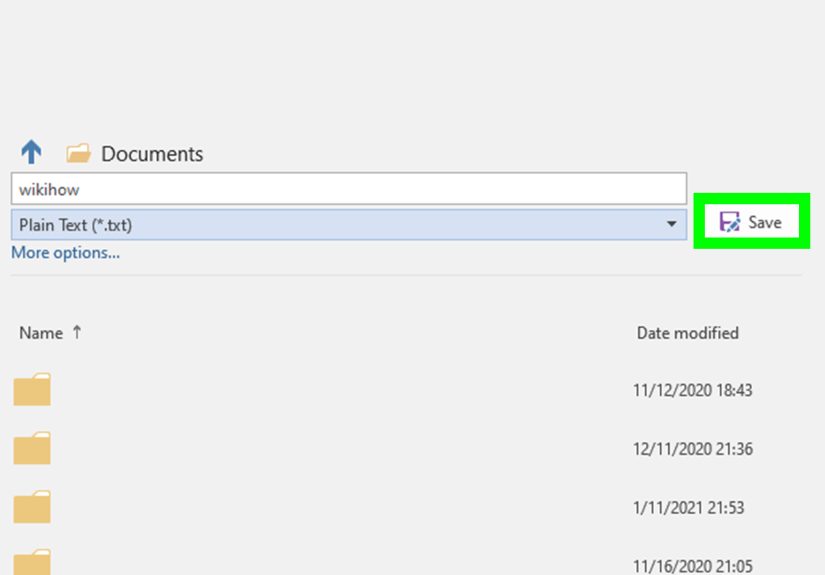
Step 3: Choose Plain Text or .txt as the file format
Now comes the key move. In the format dropdown, look for one of these labels:
- Plain Text (.txt)
- Text (.txt)
- Plain Text
- TXT
Different programs dress it up differently, but the end result is the same: a plain text file with the .txt extension.
If you do not see it right away, open the file type menu fully. Some programs tuck the option under “More formats,” “Advanced,” or a dropdown that looks harmless until it ruins your afternoon.
In Word, you will usually choose Plain Text. In Google Docs, the option appears as Plain text (.txt) under the download menu. In Pages, you may see Plain Text (TXT). In TextEdit, you may first need to convert the document to plain text before saving. That is normal.
Step 4: Name the file and check the encoding options
After selecting TXT, give the file a name you can recognize later. This sounds obvious until your Downloads folder contains gems like Document (42).txt, Final-Final-ActuallyFinal.txt, and Untitled 7.txt.
You may also see an encoding option. If you do, pay attention. Encoding affects how characters are stored and displayed. For everyday use, UTF-8 is usually the safest choice, especially if your document contains punctuation marks, symbols, or anything beyond very basic English text.
If your file uses only simple letters and numbers, default encoding may still work fine. But if you have ever opened a text file and seen question marks, boxes, or weird goblin symbols where quotation marks should be, encoding was probably the culprit.
One more small but useful detail: make sure the file name actually ends in .txt. Some apps add the extension automatically. Some do not. TextEdit on Mac even has settings related to automatically adding the .txt extension to plain text files, which is handy if you create text files often.
Step 5: Save the file and open it once to verify everything
Click Save, Export, or Download, depending on the app. Then do one tiny follow-up step that saves a lot of regret: open the TXT file immediately.
Check for these things:
- Are all your paragraphs present?
- Did headings turn into readable plain lines?
- Did bullets become dashes, symbols, or random spacing?
- Did special characters display correctly?
- Did anything important disappear?
If the answer looks good, you are done. If not, go back to the original file, simplify the formatting, and export again. TXT conversion is simple, but not magical. It works best when the source document is clean and text-focused.
Quick App-by-App Examples
Microsoft Word
Open the file, go to File > Save As, choose a location, and select Plain Text (.txt) from the file type menu. If Word shows a file conversion or compatibility prompt, do not panic. That is Word politely reminding you that your fancy formatting is about to retire.
Google Docs
Open the doc, click File > Download > Plain text (.txt), and the file will usually download to your browser’s default download folder. This is one of the easiest methods because Google Docs does the conversion for you in a couple of clicks.
Apple Pages
Use File > Export To and select the TXT option if available. Pages is more particular than some apps: text boxes, shapes, images, charts, and some layout-heavy elements do not carry over to plain text, so this method works best for straightforward body text.
TextEdit on Mac
If the document is rich text, convert it first with Format > Make Plain Text. Then save the file. TextEdit is great for quick TXT work because it is already built for plain text documents, not for showing off.
Adobe Acrobat
If you are extracting text from a PDF, use the text export option available in Acrobat or Reader, depending on your version. Just remember: a PDF converted to TXT may preserve the words but lose layout, columns, and reading order if the source file is complex.
LibreOffice Writer
Choose File > Save As, pick a text-based format if available, and review any prompts about format or encoding. LibreOffice gives you solid control, which is helpful if you work across multiple operating systems.
What You Lose When You Save as TXT
This part deserves honesty. A text file is useful because it is stripped down, and that also means it is stripped down.
- Bold, italics, underline, font styles, and colors disappear
- Images, charts, shapes, and embedded media usually vanish
- Tables may collapse into plain lines of text
- Comments, tracked changes, and layout formatting usually do not survive
- Page numbers, margins, and design elements are not preserved
Think of TXT as a moving van for words only. It will transport the language. It will not transport the interior decorating.
Common Problems and Easy Fixes
The TXT file looks messy
Your original document probably used tabs, columns, tables, or styled bullets. Simplify the formatting first, then export again.
Special characters look broken
Try saving again with UTF-8 encoding. This is especially important for curly quotes, accented characters, symbols, and mixed-language text.
The file saved, but it is missing content
Check whether the missing content was in a text box, header, footnote, image caption, chart, or comment. Plain text conversions often focus on core body text, not every design element.
The file has the wrong extension
Rename it and make sure it ends with .txt. On some systems, file extensions may be hidden, which makes this extra confusing. If needed, show extensions in your file manager before renaming.
The formatting is gone
That is not a bug. That is the entire personality of TXT.
When Saving as TXT Is the Smart Move
Plain text is especially useful when you want to:
- Strip formatting before pasting content into a CMS or website editor
- Save notes that need to open on any device
- Create clean copy for coding, scripting, or configuration files
- Archive raw text without document bloat
- Share words without worrying about software compatibility
- Prepare content for import into another application
Writers, developers, editors, students, and anyone who has ever fought with weird pasted formatting can all benefit from knowing how to make a clean TXT file. It is one of those tiny skills that feels unglamorous until it saves the day.
Real-World Examples
Example 1: Website publishing. You drafted an article in Word, but your website editor keeps importing strange font sizes and mystery spacing. Saving the copy as TXT removes the extra styling so you can paste clean text into your content management system.
Example 2: Sharing notes across devices. You want a file that opens on Windows, Mac, Linux, or even a phone without needing a specific office suite. TXT is ideal because it is simple and widely supported.
Example 3: Extracting raw text from a PDF. You need the wording from a report, not the design. Exporting as text gives you a workable version you can search, edit, or paste elsewhere.
Example 4: Writing without distractions. Some people deliberately save drafts in plain text because it removes formatting temptations. No one can spend twenty minutes choosing a font if there is no font to choose. Brutal. Effective.
Experience and Practical Lessons From Working With TXT Files
One of the funniest things about learning how to save a document as a text file is realizing that the “simple” format is usually introduced right after a complicated mess. Most people do not wake up excited to create a TXT file. They create one because something else has gone sideways. Maybe Word formatting broke during copy and paste. Maybe a website editor decided to import six random font sizes and a mysterious left indent from 2019. Maybe a professor, developer, or client said, “Please send plain text only,” and suddenly you are negotiating with your software like it is a stubborn landlord.
Over time, though, TXT becomes less of an emergency fix and more of a secret weapon. A lot of experienced writers, editors, and developers use plain text on purpose because it is clean. It travels well. It opens almost anywhere. It does not carry extra styling, which means it is harder for hidden formatting junk to hitch a ride into the next app. In publishing workflows, that matters more than most people expect. A beautifully formatted document can look polished on your screen and still become an absolute gremlin when pasted into a web editor.
There is also something oddly refreshing about plain text. It is just the writing. No colors. No fancy headers. No floating images. No “normal style plus 0.5 points of chaos.” When you save to TXT, the file forces you to focus on whether the words themselves actually work. That can be humbling, like hearing your own singing voice in a recording and realizing the shower has been lying to you.
Another practical lesson: always keep the original file. Always. TXT is great for extracting content, but it is not a replacement for a rich document when layout matters. If you save a formatted report as text and then later decide you miss the table, the footnotes, and the carefully aligned headings, the TXT file will simply shrug. That information is not hiding somewhere. It is gone from that version. The smartest workflow is to keep the original Word, Pages, Google Docs, or PDF file and create the TXT version as a clean secondary copy.
It also helps to preview the result immediately after saving. This small habit catches almost everything: broken symbols, weird paragraph gaps, collapsed bullet points, or missing chunks of content. In real-life workflows, that 10-second check is far faster than discovering the problem later after you have uploaded the wrong file, emailed the wrong version, or pasted a formatting disaster into a live webpage.
And then there is encoding, the topic nobody loves until it ruins their file. The first time you open a text file and see odd characters where quotation marks or symbols should be, you learn very quickly that the encoding choice matters. That is why choosing UTF-8 when available is such a useful habit. It is not flashy advice, but it prevents a lot of text-file heartbreak.
So yes, saving a document as a text file is simple. But it is also one of those quietly useful digital skills that makes you faster, cleaner, and a little less likely to lose a fight with your own formatting. In the glamorous world of productivity, TXT is not the celebrity. It is the reliable friend who shows up on time, says very little, and somehow saves the whole day.
Final Thoughts
If you remember nothing else, remember this: saving a document as a text file means saving the words, not the design. Once you understand that tradeoff, the process becomes easy. Open the document, choose Save As, Export, or Download, select .txt, check the encoding, save it, and verify the result.
That is it. Five easy steps. No magic. No drama. Just a clean text file that can go almost anywhere. And honestly, in a world full of overcomplicated software, that feels kind of beautiful.