Table of Contents >> Show >> Hide
- Quick reality check: Followers vs. Friends vs. Following
- How to see who is following you on Facebook (Desktop)
- How to see your followers in the Facebook app (iPhone & Android)
- How to see who you’re following (and why that matters)
- Why you can’t see a Followers tab (and how to fix it)
- How to remove or manage followers (without making it weird)
- What about Facebook Pages? Seeing who follows your Page
- Practical examples: Choosing the right follower setup
- Conclusion
- Real-World Experiences: What People Run Into (and How to Handle It)
Facebook friendships are like mutual handshakes. Following, on the other hand, is more like someone subscribing
to your “public highlights” without joining your inner circle. That can be helpful (hello, creators and small businesses),
mildly confusing (why does your aunt “follow” you but never like anything?), and occasionally a little spooky
(who is that random account with a cat photo from 2012?).
The good news: Facebook does let you view your followers listif you know where to lookand you can also control
who’s allowed to follow you in the first place. Below is a simple, up-to-date guide for desktop and mobile, plus
the most common “Why can’t I see it?!” fixes.
Quick reality check: Followers vs. Friends vs. Following
Friends
Friends are a two-way connection. In most cases, friends can see more of your content (depending on your privacy settings),
and you’ll see more of theirs.
Followers
Followers are people who can see your public posts in their Feed without being your friend.
Depending on your settings and how your account is configured, your “Followers” list is usually focused on
people who follow you but aren’t in your Friends list.
Following
This is the list of people (and sometimes Pages) you chose to follow. It’s separate from your friends list
and can have its own visibility controls.
How to see who is following you on Facebook (Desktop)
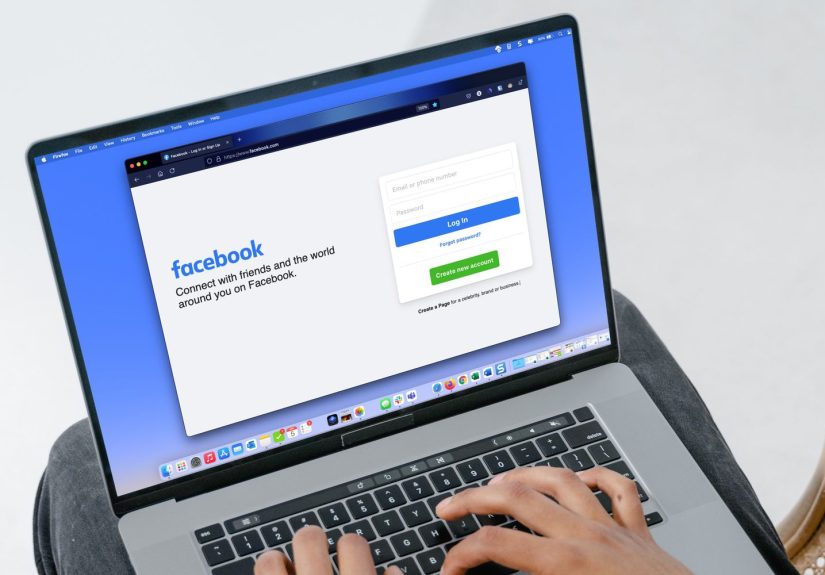
If you’re on a computer browser, you can usually find your followers from your profile’s Friends area.
Facebook tweaks labels sometimes, so think in terms of “profile” → “Friends” → “Followers.”
- Open Facebook in a browser and go to your profile.
- Click the Friends tab (usually under your cover photo).
- Look for a Followers option in that Friends area and open it.
If you see “More” or a set of sub-tabs, the Followers list is often tucked there. Once opened, you can scroll the list
to see accounts following you.
How to see your followers in the Facebook app (iPhone & Android)
On mobile, Facebook commonly shows followers in one of two places: a “Followed by” shortcut on your profile,
or a Followers section inside your About details.
Method A: Use “Followed by” on your profile
- Open the Facebook app and tap the Menu tab (or your profile icon).
- Tap your profile at the top.
- Look for Followed by near the top section of your profile and tap it.
Method B: Find Followers in your About info
- Open the Facebook app and go to your profile.
- Tap See your About info (wording may be slightly different).
- Scroll down until you find the Followers section.
- Tap See all to open the full list.
Once you’re in the list, you’ll typically see the accounts that follow you without being friends. If your follower list is empty,
it might mean you truly have no public followersor your follower settings aren’t enabled the way you expect.
We’ll troubleshoot that next.
How to see who you’re following (and why that matters)
Sometimes people search for “followers,” but what they really want is “who am I following?”
That list is differentand it matters for privacy, because following can reveal interests or connections you’d rather keep quiet.
- On desktop: Go to your profile → Friends → look for Following.
- On mobile: Go to your profile and look for Following in your profile details or Friends area.
Facebook also provides settings that can change who can see the people and Pages you follow, so if you’re aiming for a cleaner privacy footprint,
it’s worth checking your “Audience and visibility” controls.
Why you can’t see a Followers tab (and how to fix it)
If you tried the steps above and the Followers option is missing, don’t panic. This is usually one of the following situations.
1) You don’t actually have followers (beyond friends)
If your account is set up so only friends can follow you, then your followers list may not show anything interestingbecause there’s no public follower
audience to display. In that case, Facebook may hide or de-emphasize the Followers entry.
2) Your “Who can follow me?” setting is limited
Facebook lets you choose whether people who aren’t your friends can follow you. If you want a followers list (and want non-friends to follow),
you’ll generally need that setting to allow broader following.
Adjust the setting (general path)
- Go to Settings & privacy → Settings.
- Find Audience and visibility.
- Open Followers and public content (or an older label like “Public posts”).
- Set Who can follow me to Public (or keep it at Friends if you prefer privacy).
Tip: If you’re a private-by-default person, leaving it on Friends is perfectly valid.
“Followers” is optional, not a required Facebook life milestone.
3) Facebook account modes are changing (Professional Mode may be involved)
Over the past couple of years, Facebook has been shifting how public followers work on personal profiles. Many users are being nudged toward
Professional Mode if they want public followers as part of a creator-style profile experience.
If you can’t find follower settings you used to have, look for options related to Professional Mode on your profile. Professional Mode is designed
for people who want public reach while still using a profile (not a separate Page), and it can come with creator tools and insights.
4) You’re expecting “profile viewers” instead of followers
Quick myth-buster: followers are not the same as “people who viewed my profile.” Facebook does not provide a simple, official list of
everyone who has viewed your profile. If an app or website promises to show you “secret stalkers,” treat it like a digital haunted house:
it’s mostly jump scares and bad decisions.
How to remove or manage followers (without making it weird)
If someone follows you and you don’t love that for your mental peace, you have a few optionsranging from subtle to nuclear.
Option 1: Tighten who can follow you
If you switch “Who can follow me” from Public to Friends, you prevent non-friends from following your profile going forward.
This is the cleanest option when you want a broad privacy reset.
Option 2: Block (the “no, thank you” button)
Blocking prevents a person from following you and interacting with you. It’s the most direct tool when you want someone out of your online space.
Option 3: Use audience controls on posts
Remember: followers only see what you post publicly. If you share most things to Friends (or a custom list),
followers will get a very boring highlight reeland sometimes boring is a feature, not a bug.
What about Facebook Pages? Seeing who follows your Page
Pages work differently than personal profiles. People can follow a Page without “liking” it, and liking typically follows the Page by default
unless the user changes it.
Depending on your Page setup, you may be able to view a list of followers through Page settings (often under something like
“People and Other Pages,” then filtering to “People who follow this Page”). You can also review follower insights in your Page’s professional tools.
Practical examples: Choosing the right follower setup
Example 1: You’re a local baker promoting weekend specials
You might allow followers so people can keep up with public posts like menus, holiday order forms, and pop-up dateswithout adding thousands of customers
as “friends.” In that case, public followers make sense, and you’ll want to ensure your public posts are actually… public.
Example 2: You mainly use Facebook for family updates
If your content is about birthdays, school milestones, and vacation photos, you may prefer a Friends-only setup and keep followers limited.
Your peace & quiet is a valid content strategy.
Example 3: You turned on followers and suddenly regret it
It happens. Maybe a public post got shared, your follower count jumped, and now your profile feels like it has a lobby.
The fix is straightforward: tighten follower settings, switch future posts to Friends, and block any accounts that give you bad vibes.
Conclusion
To see who’s following you on Facebook, head to your profile and look for Followers inside the Friends area (desktop),
or use Followed by / About info on mobile. If the option is missing, it’s usually because you don’t have public followers enabled,
your settings limit following to friends, or your account is being guided toward creator-style options like Professional Mode.
The best part: you’re in control. You can allow followers for reach, keep it friends-only for privacy, or mix both by sharing publicly only when you choose.
Facebook is complicated, but your boundaries don’t have to be.
Real-World Experiences: What People Run Into (and How to Handle It)
If you’ve ever tried to find your followers list and felt like Facebook hid it behind a maze, you’re not alone. One of the most common experiences is the
“I swear this used to be here” moment: you go to your profile, you tap around, you open Friends, andnothing. The reason usually isn’t user error. It’s
that Facebook’s navigation shifts, labels change, and features roll out differently depending on your region, account type, and whether you’re using the
newest version of the app. The best coping strategy is to look for the concept, not the exact button: “profile → Friends area → Followers” on desktop,
or “profile → About info → Followers” on mobile.
Another classic: your follower count doesn’t match what you expected. People often assume followers should include every friend because friends
“follow” each other by default. But when Facebook shows a Followers list, it often highlights the non-friends who follow you. That’s why you might see a
small list even if you have hundreds of friends. This confusion shows up a lot when someone starts posting more publiclylike sharing a public Reels clip,
a Marketplace listing, or a community event. A post gets shared, new people follow, and suddenly you want to see who they are. That’s when the Followers
list becomes useful: it’s your quick “Who just joined the audience?” check.
People also run into the “friend request limbo” situation. You notice someone you didn’t accept still seems to show up in your orbit. In many cases,
if someone sends a friend request and you don’t respond, that person can still end up following your public updates. This is one reason some users decide
to keep the “Who can follow me?” setting limited to Friendsespecially if they use Facebook mostly for personal life. If you’d rather keep public followers,
the other habit that helps is posting personal updates to Friends and saving Public for intentional announcements (like “new blog post” or “event photos”).
Then there’s the Professional Mode learning curve. Many people didn’t ask for “creator tools,” but Facebook has been nudging accounts in that direction
if they want public followers. The experience tends to go like this: you want followers because you’re building an audience, you enable the option, and
later you realize Facebook is offering dashboards, insights, and extra controls. Some users love it because it feels like a lightweight creator setup.
Others just want the simplest possible profile. If you’re in the second group, your best move is to keep your follower settings conservative and turn on
public reach only when you need it.
Finally, a safety-themed experience that comes up constantly: third-party “follower tools.” People search “who follows me” and get tempted by sketchy
apps that promise to reveal followers, unfollowers, or even profile viewers. The smartest users treat those tools like suspicious free sushi: technically
edible, emotionally risky. If you want real follower information, stick to Facebook’s built-in lists and settings. It’s not as flashy, but it’s far less
likely to end with you changing your password at 2 a.m. while whispering, “I have learned nothing.”