Table of Contents >> Show >> Hide
- What “Sleep Time” Means on a Mac
- How to Set the Sleep Time on a Mac in macOS Ventura, Sonoma, Sequoia, and Later
- Best Sleep Time Settings for Different Mac Users
- How to Change Sleep Settings on Older macOS Versions
- How to Stop a Mac from Sleeping Temporarily
- How to Schedule Sleep, Wake, Restart, or Shut Down on a Mac
- How to Make a MacBook Stay Awake with the Lid Closed
- How to Control When Your Mac Requires a Password
- Common Problems When Setting Mac Sleep Time
- Manual Ways to Put Your Mac to Sleep
- Should You Set Mac Sleep Time to Never?
- Real-World Experiences: What Mac Sleep Settings Actually Feel Like
- Conclusion
Setting the sleep time on a Mac sounds like one of those tiny tech chores you can finish in ten secondsuntil you open System Settings and realize Apple has renamed, moved, split, and polished the controls like they were furniture in a minimalist apartment. The good news: once you know where to look, changing your Mac sleep settings is simple.
Whether you use a MacBook Air, MacBook Pro, iMac, Mac mini, Mac Studio, or Mac Pro, the goal is usually the same: control how long your Mac stays awake before the display turns off, the system sleeps, or your login password is required again. Maybe your screen goes dark while you are reading a recipe. Maybe your Mac refuses to sleep because it thinks it is the night-shift security guard. Or maybe you want downloads, backups, music, or external displays to behave correctly.
This guide explains how to set the sleep time on a Mac, how to adjust display timeout settings, how to stop your Mac from sleeping when plugged in, and how to troubleshoot common sleep problems. No panic clicking required.
What “Sleep Time” Means on a Mac
Before changing settings, it helps to understand one important detail: on modern macOS versions, “sleep time” and “display off time” are related but not exactly the same thing.
When your Mac turns the display off, the screen goes black to save power and reduce wear. The computer may still be awake for a while, especially if it is plugged into power or performing background tasks. When the Mac sleeps, it enters a lower-power state where many activities pause until you wake it again.
There is also the Lock Screen setting, which controls when your Mac asks for a password after the display turns off or a screen saver begins. That means you may be dealing with three separate timers:
- Display timeout: how long before the screen turns off.
- System sleep: whether the Mac sleeps after the display turns off.
- Password requirement: how soon your Mac locks after sleep or screen saver begins.
Think of it like leaving a room. Turning off the display is switching off the lights. Sleep mode is leaving the house. Requiring a password is locking the door behind you.
How to Set the Sleep Time on a Mac in macOS Ventura, Sonoma, Sequoia, and Later
If your Mac uses the newer System Settings design, the main sleep-related controls are found in Lock Screen, Battery, or Energy, depending on your Mac model.
Step 1: Open System Settings
- Click the Apple menu in the top-left corner of the screen.
- Select System Settings.
- Scroll down in the sidebar and click Lock Screen.
Step 2: Change When the Display Turns Off
In the Lock Screen settings, look for options such as:
- Turn display off on battery when inactive
- Turn display off on power adapter when inactive
Click the drop-down menu next to each option and choose the time you prefer. You may see choices such as 1 minute, 2 minutes, 5 minutes, 10 minutes, 30 minutes, 1 hour, 3 hours, or Never, depending on your macOS version and Mac model.
For most MacBook users, a good balanced setup is:
- On battery: 5 to 10 minutes
- On power adapter: 15 to 30 minutes
If you often read long documents, watch tutorials, or follow cooking instructions from your Mac, choose a longer time. Your Mac should not take a nap in the middle of “add two eggs.” That is rude.
Step 3: Decide Whether the Mac Should Sleep When the Display Is Off
On a Mac laptop, go to:
Apple menu > System Settings > Battery > Options
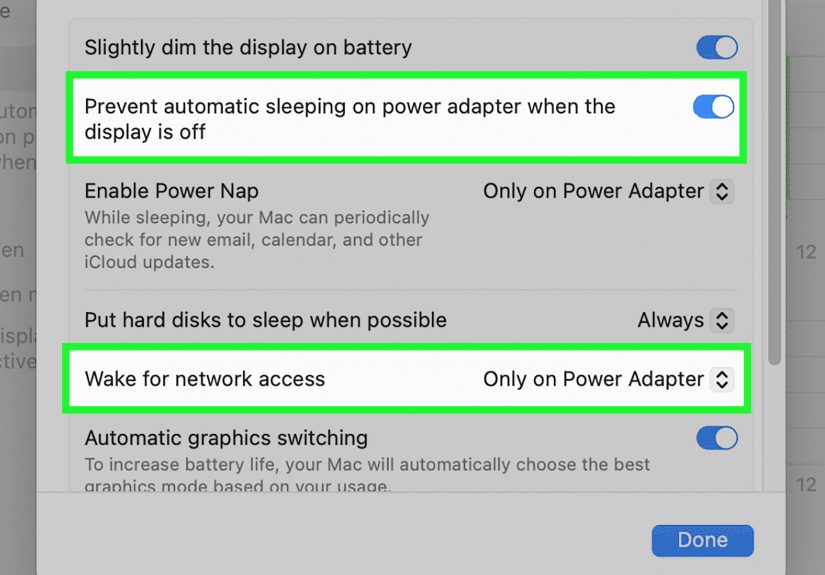
Look for Prevent automatic sleeping on power adapter when the display is off. Turn this on if you want your MacBook to stay awake while plugged in, even after the screen turns off. This is useful for large downloads, backups, media servers, file transfers, or remote access.
On a desktop Mac, such as an iMac, Mac mini, Mac Studio, or Mac Pro, go to:
Apple menu > System Settings > Energy
Then look for a similar option: Prevent automatic sleeping when the display is off. Turn it on only if you need the Mac to keep running in the background. Otherwise, letting it sleep saves energy and keeps things cooler.
Best Sleep Time Settings for Different Mac Users
The “perfect” Mac sleep time depends on how you use your computer. A writer, video editor, student, gamer, and office worker may all need different settings. Here are practical examples.
For Everyday MacBook Users
If you mainly browse the web, write documents, attend video calls, and answer emails, choose a moderate timeout. Set the display to turn off after 5 or 10 minutes on battery and 15 minutes when plugged in. This protects battery life without making the Mac feel impatient.
For Students and Researchers
If you read PDFs, academic papers, lecture slides, or long web pages, extend the display timeout to 15 or 30 minutes. Nothing breaks concentration like having to wake your Mac every time you pause to think. Your laptop should support your brain, not behave like a dramatic stage curtain.
For Designers, Editors, and Developers
If you run long exports, software builds, uploads, renders, or virtual machines, keep your Mac awake while plugged in. Set the display to turn off after 15 or 30 minutes, but enable the setting that prevents automatic sleeping on the power adapter. That way, the screen can rest while the work continues.
For Battery-Saving Travelers
If you work from cafés, airports, libraries, or anywhere outlets are treated like rare treasure, use shorter battery settings. A display timeout of 2 to 5 minutes can help preserve battery life. You can always increase it temporarily when needed.
How to Change Sleep Settings on Older macOS Versions
If your Mac runs macOS Monterey or earlier, the menus look different. Instead of System Settings, you will use System Preferences.
For Older MacBook Models
- Click the Apple menu.
- Choose System Preferences.
- Click Battery or Energy Saver.
- Adjust the display sleep slider or timeout settings.
- Choose different settings for battery power and power adapter if available.
For Older Desktop Macs
- Open System Preferences.
- Click Energy Saver.
- Adjust the sleep or display timeout slider.
- Enable or disable options such as preventing the computer from sleeping automatically.
Older versions of macOS may show a slider labeled something like Turn display off after. Move it left for a shorter timeout or right for a longer one. Moving it all the way to Never keeps the display from turning off automatically, but use that carefully. Screens need rest too. Even your Mac deserves a little spa time.
How to Stop a Mac from Sleeping Temporarily
Sometimes you do not want to change your normal settings. You only need your Mac to stay awake for one task, such as downloading a large file, uploading a video, giving a presentation, or running a backup. In that case, Terminal can help.
Use the Caffeinate Command
macOS includes a built-in command called caffeinate. It temporarily prevents sleep while it is running.
- Open Terminal. You can find it in Applications > Utilities.
- Type the following command:
Press Return. Your Mac will stay awake until you close Terminal or stop the command by pressing Control + C.
To keep your Mac awake for one hour, use:
The number is measured in seconds. For example, 1800 means 30 minutes, 7200 means 2 hours, and 10800 means 3 hours. This is a handy trick when you need temporary control without permanently changing your sleep time settings.
How to Schedule Sleep, Wake, Restart, or Shut Down on a Mac
On some older macOS versions, scheduling sleep and wake times was available directly in Energy Saver settings. On newer macOS versions, scheduling is commonly handled through Terminal using the pmset command.
For example, advanced users can use Terminal to schedule sleep, wake, restart, or shutdown times. This is especially useful for offices, classrooms, media stations, or Macs that need to start before work and sleep after hours.
Because pmset affects power management, use it carefully. If you are not comfortable with Terminal, it is safer to adjust regular sleep settings in System Settings. A mistyped command will not summon a dragon, but it can make your Mac behave in confusing ways.
How to Make a MacBook Stay Awake with the Lid Closed
MacBooks normally sleep when you close the lid. This is expected behavior because the computer assumes you are done using it. However, you can use a MacBook with the lid closed in clamshell mode if you connect the right equipment.
Typically, you need:
- A power adapter connected to the MacBook
- An external display
- An external keyboard and mouse or trackpad
Then set your power adapter sleep settings so the Mac does not automatically sleep when the display is off. This setup is popular for desk work because your MacBook can act like a compact desktop computer. It is also great for people who enjoy having fewer screens open and fewer distractionsuntil the browser tabs multiply again, as they always do.
How to Control When Your Mac Requires a Password
Changing sleep time is not the same as changing when your Mac asks for a password. To adjust that setting:
- Open System Settings.
- Click Lock Screen.
- Find Require password after screen saver begins or display is turned off.
- Choose the delay you want.
For security, requiring a password immediately or after a short delay is best, especially if you use your Mac in public places. If you are at home and find immediate locking annoying, choose a short delay such as 5 seconds, 1 minute, or 5 minutes. Avoid setting this to Never unless you fully understand the privacy risk.
Common Problems When Setting Mac Sleep Time
Your Mac Goes to Sleep Too Quickly
If your Mac sleeps or the display turns off too fast, check System Settings > Lock Screen. Increase the time for battery and power adapter. Also check whether Low Power Mode or battery-saving habits are making the Mac more aggressive about conserving energy.
Your Mac Does Not Sleep When Expected
If your Mac refuses to sleep, check whether apps are keeping it awake. Video calls, music apps, downloads, cloud syncing, external drives, sharing services, connected displays, or backup tools may delay sleep. Also review Battery or Energy settings to see whether you enabled a “prevent automatic sleeping” option.
Your Mac Wakes Up Randomly
Random wake-ups can happen because of Bluetooth devices, network access, notifications, scheduled tasks, external accessories, or power events. If a mouse, keyboard, or trackpad wakes the Mac too easily, check Bluetooth and accessory settings. If network access is enabled, the Mac may wake for services such as file sharing or remote access.
The Screen Turns Off but Audio Keeps Playing
This usually means the display has turned off but the Mac itself has not fully slept. That can be normal, especially when media is playing. If you want everything to stop, choose Apple menu > Sleep manually.
Manual Ways to Put Your Mac to Sleep
You do not always need to wait for the timer. To put your Mac to sleep manually, use one of these methods:
- Click the Apple menu and choose Sleep.
- Close the display on a MacBook.
- Use a supported keyboard shortcut, such as Option + Command + Power on some keyboards.
- Set up a Hot Corner to put the display to sleep quickly.
Manual sleep is useful when you are stepping away, saving battery, or ending your workday. It is also more elegant than staring at your Mac and waiting for it to take the hint.
Should You Set Mac Sleep Time to Never?
You can set your Mac display timeout to Never, but that does not mean you always should. Keeping your Mac awake all the time can use more electricity, reduce battery life, generate heat, and keep the display active longer than necessary.
Use Never only when you have a clear reason, such as running a presentation kiosk, using a Mac as a server, completing overnight downloads, monitoring dashboards, or working with external equipment. For normal use, it is better to choose a longer but reasonable timeout.
A smart compromise is to keep shorter sleep settings on battery and longer settings when plugged in. That gives you battery savings on the go and convenience at your desk.
Real-World Experiences: What Mac Sleep Settings Actually Feel Like
After helping plenty of Mac users adjust sleep settings, one pattern becomes clear: most people do not want their Mac to never sleep. They want it to stop sleeping at the worst possible moment. That is a very different problem.
For example, a student reading a 40-page PDF may think they need to disable sleep completely. In reality, setting the display timeout to 30 minutes on battery is usually enough. The Mac stays awake during reading sessions, but it still saves battery when forgotten on a desk. That is the sweet spot: useful, not reckless.
Remote workers often have a different issue. Their MacBook is plugged into a monitor, keyboard, and mouse, and they want it to behave like a desktop. In this case, changing the power adapter setting is key. The display can turn off, but the Mac should not automatically sleep if it needs to stay connected to Slack, Zoom, remote desktop, file syncing, or a company VPN. Of course, some company-managed Macs may restrict these settings, because IT departments enjoy being mysterious wizards.
Creative professionals usually notice sleep settings during exports. A video editor may start a long render, walk away, and return to discover the Mac decided bedtime was more important than deadlines. For this situation, using caffeinate is often better than changing permanent settings. Running caffeinate -t 7200 keeps the Mac awake for two hours, which is perfect for temporary heavy work.
Writers and bloggers often prefer a calmer setup. A 10-minute battery timeout and a 30-minute power adapter timeout can work beautifully. The screen does not vanish every time you pause to think of a better sentence, but the Mac still rests when abandoned. This is especially useful for people who write in cafés, where battery percentage drops faster than motivation after opening social media.
For families, shorter sleep settings make sense. If multiple people use the same Mac, requiring a password soon after the display turns off helps protect email, photos, saved passwords, and personal files. In that case, sleep time is not only about power. It is also about privacy.
The best experience comes from treating Mac sleep settings as a personal workflow choice. Start with balanced defaults, then adjust based on what annoys you. If the screen turns off while you are reading, increase the timeout. If the battery drains too fast, shorten it. If tasks stop overnight, use power adapter options or Terminal temporarily. Your Mac should fit your routinenot the other way around.
Conclusion
Learning how to set the sleep time on a Mac is really about learning how macOS manages power, display timeout, privacy, and background activity. On newer Macs, start in System Settings > Lock Screen to change when the display turns off. Then check Battery > Options on MacBooks or Energy on desktop Macs if you want to prevent automatic sleep when the display is off.
For most people, the best setup is simple: short sleep times on battery, longer sleep times when plugged in, and temporary tools like caffeinate for special tasks. That gives you the best mix of convenience, battery life, security, and performance.
Note: Menu names can vary slightly depending on your macOS version, Mac model, and whether your device is managed by a school or workplace. If a setting is missing, check nearby Battery, Energy, Lock Screen, or Display options.