Table of Contents >> Show >> Hide
- Start Here: Know Where Your Contacts Are Stored
- The Best Method for Most People: Transfer Contacts with Your Google Account
- Use Android Setup to Copy Contacts from the Old Nokia to the New One
- How to Transfer Contacts Using a SIM Card
- Transfer Contacts with a VCF File
- Can You Transfer Contacts via Bluetooth?
- What If You Switched Phones but Your Contacts Are Missing?
- How to Clean Up Duplicates After the Transfer
- Which Transfer Method Is Best?
- Tips Before You Erase or Trade In Your Old Nokia Phone
- Real-World Experiences and Lessons Learned When Moving Contacts Between Nokia Phones
- Conclusion
Switching from one Nokia phone to another should feel exciting. New battery, fresh screen, fewer mysterious smudges, and maybe a camera that no longer thinks your dog is a watercolor painting. But then reality taps you on the shoulder and asks one question: “So… where are your contacts?”
The good news is that moving contacts between Nokia phones is usually simple. The even better news is that you do not need to manually retype Aunt Linda, Pizza Place, Dentist Maybe, and that one number saved as “Do Not Answer.” Whether you are switching from one Nokia smartphone to another, from a Nokia flip phone to a Nokia smartphone, or between two basic Nokia devices, there are several reliable ways to get the job done.
In most cases, the fastest method is using your Google account, because many newer Nokia phones run Android and work smoothly with Google Contacts. But that is not your only option. You can also transfer contacts during setup, import them from a SIM card, move them with a VCF file, or use Bluetooth on certain models. The right method depends on what kind of Nokia phones you are using, how your contacts were originally saved, and whether your old phone still turns on without staging a protest.
Start Here: Know Where Your Contacts Are Stored
Before you transfer anything, check where your contacts actually live. This step matters more than people expect. Contacts may be stored in one of several places: your Google account, the phone’s internal storage, the SIM card, a memory card, or another cloud account such as Outlook. If you skip this step, you might think your contacts vanished when they are really just lounging in a different account.
On a Nokia smartphone, open the Contacts app and look for the account label attached to your entries. Some contacts may be saved to Google, while others are saved only on the device. That split personality is common. On older or basic Nokia phones, contacts may live in phone memory or on the SIM card. If your old device is a flip phone or a simpler model, the contact transfer path may look a little more old-school, but it still works.
The Best Method for Most People: Transfer Contacts with Your Google Account
If both your old and new Nokia phones are Android smartphones, this is usually the easiest and cleanest option. Think of it as the “let the cloud do the heavy lifting” method. If your contacts are already synced to Google, all you need to do is sign in to the same Google account on the new Nokia phone and let the contacts sync down.
How to do it
On your old Nokia phone, go to your Google account settings and make sure contact syncing is turned on. Give it a few moments to finish syncing. Then, on the new Nokia phone, sign in with the same Google account during setup or afterward in Settings. Once sync is active, your contacts should appear automatically in the Contacts app.
This method is ideal because it usually keeps more than just phone numbers. You may also keep names, email addresses, notes, contact photos, and other details that a SIM card often does not handle as gracefully. It is the modern, low-drama method, which is always nice when phones are involved.
Example: If you are moving from a Nokia G22 to a Nokia C32, and both phones use the same Google account, you can often get your contacts back just by signing in and syncing. No cables. No detective work. No yelling.
Use Android Setup to Copy Contacts from the Old Nokia to the New One
If your new Nokia phone is still in the setup process, you have a golden opportunity. Android setup on many Nokia smartphones lets you copy apps and data, including contacts, from your old phone. You can often do this with a cable or wirelessly, depending on the devices and setup options available.
Why this method works well
This approach is especially handy when your contacts are not fully synced to Google yet, or when you want a more complete transfer during the first-time setup. It can also help move other content, which is a nice bonus if you are not in the mood to rebuild your digital life from scratch.
When to use it
Use this method if both Nokia phones are working, nearby, charged, and you are setting up the new device for the first time. If you already skipped setup, do not panic. You can still use other methods below.
How to Transfer Contacts Using a SIM Card
The SIM card method is still useful, especially if one or both Nokia phones are basic phones, older phones, or devices that are not heavily tied to a Google account. The idea is simple: copy contacts to the SIM on the old phone, move the SIM to the new phone, and import those contacts.
Step-by-step idea
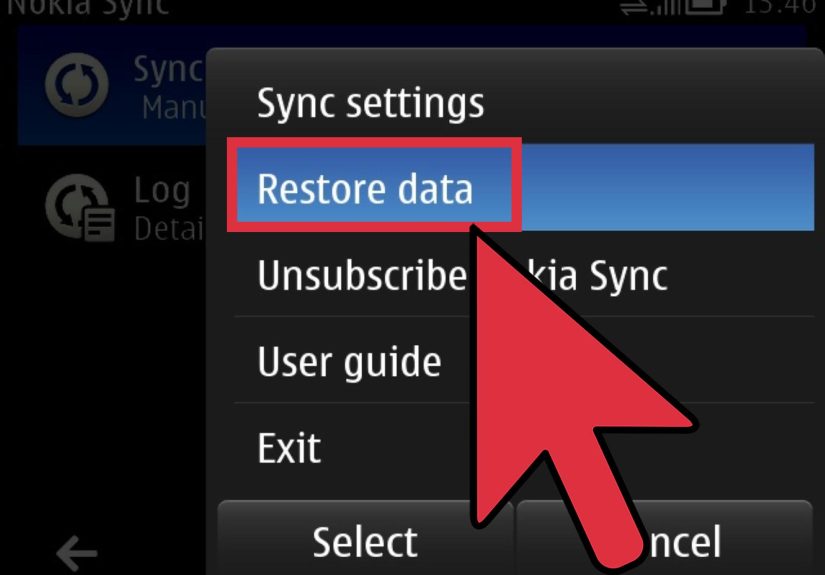
On the old Nokia phone, open Contacts and look for an option such as Copy Contacts, Move Contacts, Export, or Manage SIM. Copy the contacts from phone memory to the SIM card. Then remove the SIM, insert it into the new Nokia phone, open the Contacts app, and import the contacts from the SIM.
On many Android-based Nokia phones, the import step is easy inside the Contacts app. On some flip or KaiOS-style Nokia phones, you may find the option under Contacts settings or import tools. Menu names vary by model, so do not be surprised if your phone says Import Contacts while another says Manage SIM. Phones enjoy making the same idea sound like three different chores.
When this method makes sense
This is a good backup plan when your old phone does not use Google sync, when Wi-Fi is unavailable, or when you are moving between simpler devices. It is also useful if you only need the basics and want a quick, no-frills transfer.
Example: If you are switching from a Nokia 2780 Flip or another basic phone to a Nokia smartphone, copying contacts to the SIM can be a practical bridge between the two worlds.
Transfer Contacts with a VCF File
If you want more control, the VCF method is excellent. A VCF file is basically a contact backup file. You export your contacts from the old device into a VCF file, move that file to the new phone, and then import it. It sounds technical, but it is really just the phone version of packing your contacts into a tiny suitcase.
How it works on a Nokia smartphone
Open the Contacts app on the old phone and look for an option like Export to file, Export contacts, or Import/Export. Save the file as a VCF. Then send that file to the new phone using email, cloud storage, Bluetooth, a memory card, or a USB cable. On the new Nokia phone, open Contacts and choose Import from file, then select the VCF file.
Why people like this method
It gives you a portable backup. Even if the transfer goes sideways, you still have a contact file that can be stored on your computer or cloud drive. It is also handy when changing accounts, cleaning up contacts before importing, or moving between devices that do not play nicely together during direct setup.
Example: If your old Nokia phone has contacts saved locally instead of in Google, exporting a VCF file lets you rescue everything before resetting or trading in the phone.
Can You Transfer Contacts via Bluetooth?
Yes, on some Nokia models you can. This method is more common on basic phones, flip phones, and some devices that allow contact sharing as vCards over Bluetooth. It is not always the fastest option, and it may work better for smaller contact lists or selected contacts rather than hundreds of entries. Still, when it works, it is wonderfully cable-free.
How to use Bluetooth transfer
Turn on Bluetooth on both phones and pair them. On the old phone, open Contacts, select one or more contacts, and look for an option like Share, Send, or Transfer via Bluetooth. Accept the incoming file on the new phone, then import or save the received contacts.
This method is especially helpful if you are moving between certain flip phones or basic Nokia devices that support Bluetooth contact transfer. If you do not see the option to send all contacts at once, you may need to transfer them in smaller batches.
What If You Switched Phones but Your Contacts Are Missing?
First, do not assume disaster. Missing contacts are often hiding in plain sight. Check these common causes before you declare the situation a digital tragedy.
1. You are signed into the wrong account
Many people have more than one Google account on a phone. Your contacts may be sitting in another account, perfectly safe, while you glare at the wrong inbox and blame the handset.
2. Contact sync is turned off
Open account settings and verify that Contacts sync is enabled. If it is off, your contact list may not download to the new phone.
3. The Contacts app is filtering what you see
Some phones let you show contacts from only one account or storage source. Change the filter so all contacts are visible.
4. The contacts were stored on the old device only
If they were never synced or exported, you may need to go back to the old phone and use the SIM or VCF method.
How to Clean Up Duplicates After the Transfer
Ah yes, the duplicate contact problem. You transferred everyone successfully, but now “Mom” appears three times, “Dad” appears twice, and your plumber somehow has a twin. This usually happens when contacts were saved in multiple places, such as both the phone and Google.
The fix is simple. Use the merge or duplicate cleanup option in Google Contacts or the Contacts app. This tool can combine repeated entries into one cleaner record. It is the digital equivalent of tidying a junk drawer, except more satisfying and with fewer expired batteries.
Which Transfer Method Is Best?
Here is the practical answer:
Best for two Nokia smartphones
Use Google sync or Android setup copy.
Best for a basic Nokia phone to a Nokia smartphone
Use SIM transfer, Bluetooth, or a memory card if supported.
Best for backups and peace of mind
Use a VCF export file and save a copy somewhere safe.
Best if you skipped setup already
Use Google sync, SIM import, or VCF import after setup.
If you are unsure, start with Google sync first. It is usually the smoothest method for modern Nokia phones. If that fails, VCF export is the next most reliable fallback. SIM transfer is great in a pinch, particularly with older devices.
Tips Before You Erase or Trade In Your Old Nokia Phone
Do not reset the old phone the second your new one lights up. That is a classic “I believe in myself” move that sometimes ends in regret. Before wiping the old device, make sure your contacts appear on the new phone, open correctly, and are attached to the account you want to keep.
It is also smart to create a backup using Google sync or a VCF file before factory resetting anything. A two-minute backup can save you from a weekend of texting people, “Hey, sorry, who is this?”
Real-World Experiences and Lessons Learned When Moving Contacts Between Nokia Phones
In real life, transferring contacts between Nokia phones is less about one magical button and more about choosing the method that matches the phones in your hands. People moving from one recent Nokia Android phone to another usually have the easiest time. They sign in with the same Google account, wait a few minutes, and their contacts simply appear. It feels almost suspiciously easy, like the phone is trying to win back your trust after years of low-battery warnings.
Things get more interesting when one of the phones is older, simpler, or built for people who believe apps are a modern conspiracy. A common experience is moving from a flip-style Nokia to a newer Nokia smartphone. In those cases, users often discover their contacts are saved on the SIM card or in the old phone’s internal memory rather than in a cloud account. The transfer still works, but it usually takes one extra step: copy to SIM, import from SIM, or send contacts over Bluetooth. Not difficult, just less glamorous.
Another frequent lesson is that people do not always know where their contacts have been saved over the years. Some are in Google. Some are on the SIM. Some are only on the old phone. Some have apparently been raised by wolves. That is why checking the storage location first is such a smart move. It saves time and prevents the false panic of thinking contacts are gone when they are actually stored under a different account.
Users also learn quickly that the initial setup screen on a new Nokia phone is more powerful than it looks. If you take the time to copy data during setup, the transfer is often smoother than trying to fix everything later. Once people skip that screen, they tend to spend the next hour poking around settings, looking mildly betrayed. It is still fixable afterward, but setup is the easier runway.
VCF backups deserve more love than they get. Many people do not think to create one until they have a problem, but it is one of the safest ways to preserve contacts before switching devices. A small backup file can be emailed, stored in cloud storage, or copied to a computer. That makes it a great “just in case” option, especially if the old phone is acting unstable or is one dramatic reboot away from retirement.
Another real-world pattern is the duplicate-contact aftermath. After the transfer, people often find multiple versions of the same person because the new phone is showing contacts from Google, the device, and the SIM at the same time. This looks alarming for about thirty seconds, then becomes manageable once you use the merge tool. It is annoying, but fixable.
The biggest lesson from all these experiences is simple: transferring contacts between Nokia phones is rarely impossible. It just requires using the right path for your device type. Start with Google if both phones are modern smartphones. Use SIM, Bluetooth, or memory-card-style options for older or simpler devices. Make a backup before wiping the old phone. Then double-check everything before you say goodbye to your previous handset. Your future self will be grateful, and your contact list will remain gloriously intact.
Conclusion
Transferring contacts when switching between Nokia phones is usually much easier than people expect. If both devices are modern Nokia smartphones, your Google account will often do most of the work. If one phone is older or simpler, SIM transfer, Bluetooth sharing, and VCF backup files are solid alternatives. The key is to identify where your contacts are stored, choose the method that matches your phone models, and confirm the transfer before wiping the old device.
In other words, do not let your contact list become a scavenger hunt. With a little prep and the right method, you can move your contacts from one Nokia phone to another without turning the process into a full-time job.