Table of Contents >> Show >> Hide
- Why your Nintendo Switch won’t connect to the TV
- Fix #1: Make sure your Switch model actually supports TV mode
- Fix #2: Reconnect everything in the correct order
- Fix #3: Double-check your TV input before blaming the Switch
- Fix #4: Power cycle the dock, AC adapter, TV, and console
- Fix #5: Check the physical dock connection
- Fix #6: Test another HDMI cable, HDMI port, or TV
- Fix #7: Update the console and adjust TV settings
- When it’s probably a hardware problem
- Final thoughts
- Extra: Real-world experiences with a Nintendo Switch that won’t connect to the TV
Your Nintendo Switch is docked. Your Joy-Cons are ready. Your snacks are in position. And your TV? It’s giving you absolutely nothing. Just a blank screen, a grumpy “No Signal” message, or the visual equivalent of a shrug.
If your Nintendo Switch is not connecting to your TV, don’t panic and don’t immediately assume the dock has gone to that great repair center in the sky. In most cases, the issue comes down to a simple setup problem: the wrong HDMI input, a loose cable, a power hiccup, a protective case blocking the dock connection, or settings that need a quick refresh.
The good news is that this is usually fixable without advanced tech skills, a screwdriver, or a dramatic monologue. Below, you’ll find seven easy fixes for a Nintendo Switch that won’t show up on your TV, along with practical examples, troubleshooting tips, and a few sanity-saving reminders for when the living room starts feeling like a low-budget IT department.
Why your Nintendo Switch won’t connect to the TV
When the Switch works in handheld mode but not on the TV, the problem is usually somewhere in the connection chain: the dock, the AC adapter, the HDMI cable, the TV’s input setting, or the console’s docking position. Think of it like a relay race where one runner forgot to show up. The whole team stops moving.
Before you do anything complicated, remember this: the Nintendo Switch needs proper power through the dock and a clean HDMI signal to your television. If either one is missing, your TV mode can fail even if the console itself is perfectly healthy.
Fix #1: Make sure your Switch model actually supports TV mode
This sounds almost too obvious, but it solves more confusion than you’d think. The standard Nintendo Switch and the Nintendo Switch OLED can connect to a TV. The Nintendo Switch Lite cannot. Not “usually can’t.” Not “with a little creativity.” Officially, it does not support TV mode.
So if you’re trying to dock a Switch Lite and wondering why the TV stays blank, the issue is not your HDMI cable, your dock, your television, your router, Mercury in retrograde, or cosmic injustice. It’s simply the wrong model for TV output.
What to check
- If your console is a Nintendo Switch Lite, stop here. TV mode is not supported.
- If you have a standard Switch or Switch OLED, continue with the fixes below.
- If you bought your console secondhand, double-check the model before troubleshooting the dock for an hour.
This is also a good moment to confirm you’re using a real Nintendo Switch dock and a compatible power adapter. A random USB-C charger may charge the console in handheld mode but still fail to provide the power the dock needs to output video.
Fix #2: Reconnect everything in the correct order
One of the easiest Nintendo Switch TV fixes is also one of the most overlooked: reconnect the cables in the right order. The dock should be powered first, then connected to the TV through HDMI, and only then should the Switch be placed into the dock.
That order matters more than people expect. If the dock is not getting the right power at the right time, the Switch may never fully switch into TV mode. It may sit there charging while your television stares back at you like it has never heard of Mario.
The correct setup order
- Open the back cover of the dock.
- Plug the official Nintendo Switch AC adapter into the dock’s AC Adapter port.
- Plug the AC adapter into a wall outlet.
- Connect the HDMI cable to the dock’s HDMI Out port.
- Connect the other end of the HDMI cable to your TV.
- Place the Switch into the dock with the screen facing the same direction as the dock’s front panel.
- Select the matching HDMI input on your TV.
If you already had everything plugged in, remove the console, unplug both cables, wait a few seconds, and reconnect them in that sequence. This small ritual fixes a surprising number of stubborn blank-screen problems.
Fix #3: Double-check your TV input before blaming the Switch
This is the part where many people discover the console was fine all along and the TV was simply parked on the wrong HDMI input. It’s not glamorous, but it’s real life.
If your Nintendo Switch dock is connected to HDMI 2 and your TV is set to HDMI 1, you will get exactly zero gameplay and one hundred percent confusion. Some televisions also rename inputs based on connected devices, which can make it even easier to pick the wrong one.
What to do
- Look at the HDMI port your dock is using on the TV.
- Use your remote’s Input or Source button to switch to that exact HDMI input.
- If nothing appears, try the next HDMI input just to be sure.
- If your TV runs through a soundbar, receiver, or HDMI switcher, bypass that gear temporarily and connect the dock straight to the TV.
Example: If your cable box uses HDMI 1 and your Switch dock is on HDMI 3, your TV will not magically guess your intentions. You have to tell it where to look. Technology remains very skilled at being literal.
Fix #4: Power cycle the dock, AC adapter, TV, and console
When your Nintendo Switch won’t display on TV, a full power cycle can clear a temporary handshake problem between the dock and the screen. This is especially helpful if everything was working yesterday and suddenly stopped today for no obvious reason.
The basic idea is simple: shut everything down, let it fully reset, then bring it back online cleanly. Nintendo’s own troubleshooting also recommends unplugging the AC adapter for at least 30 seconds so it can reset properly.
Try this reset routine
- Power off the TV.
- Remove the Switch from the dock.
- Unplug the AC adapter from both the dock and the wall outlet.
- Disconnect the HDMI cable from the dock and TV.
- Wait at least 30 seconds.
- Restart the Switch completely, not just Sleep Mode.
- Reconnect the AC adapter and HDMI cable in the correct order.
- Turn the TV back on and dock the console again.
If the console seems frozen, hold the Power button long enough to fully shut it down, then power it back on. A proper restart is often more useful than repeatedly docking and undocking the console like you’re trying to negotiate with it.
Fix #5: Check the physical dock connection
Sometimes the problem is not electronic. It’s physical. The console may not be seating correctly in the dock, which means it never fully switches to TV output.
This is common when a protective shell, travel cover, silicone skin, or bulky decal keeps the Switch from sitting all the way down. Even slight misalignment can prevent a proper connection. Dust or debris inside the dock can also interfere, especially if the dock lives near a TV stand that collects lint like it’s a hobby.
Look for these issues
- A case or grip attached to the console
- The screen facing the wrong direction in the dock
- The console not fully seated
- Visible debris or bent connectors around the dock’s ports
- A loose-feeling HDMI connection at the back of the dock
Remove any case before docking. Then reseat the console carefully. When docked correctly, the Switch screen should turn off. That part is normal. A black handheld screen plus TV output is what you want. A black handheld screen plus no TV output is where the detective work continues.
Fix #6: Test another HDMI cable, HDMI port, or TV
If you’ve confirmed the setup is correct and the console still won’t show on the television, isolate the hardware. Bad HDMI cables are more common than people realize, and HDMI ports can be finicky or partially damaged without looking broken.
This step is all about narrowing the problem. You are not just trying random things. You are figuring out whether the failure follows the cable, the dock, or the display.
Smart ways to isolate the issue
- Try a different HDMI cable.
- Try a different HDMI input on the same TV.
- Try connecting the dock to another television or monitor.
- Inspect the dock’s HDMI Out port for wobble, bent pins, or debris.
- Test whether the console still charges in the dock even if no video appears.
Example: If your Switch works on the bedroom TV but not the living room TV, your console and dock are probably fine. If it fails on every display with every cable, the dock becomes a much more likely suspect.
This is also the point where using the original Nintendo accessories becomes extra important. If you’re troubleshooting with an old no-name HDMI cable and a third-party charger from a drawer of mysterious wires, you are not getting clean diagnostic results. You are running an experiment inside a chaos machine.
Fix #7: Update the console and adjust TV settings
Software and display settings can also cause Nintendo Switch dock issues. If the console is outdated, glitchy, or trying to negotiate a display setting your TV doesn’t like, TV mode may behave badly.
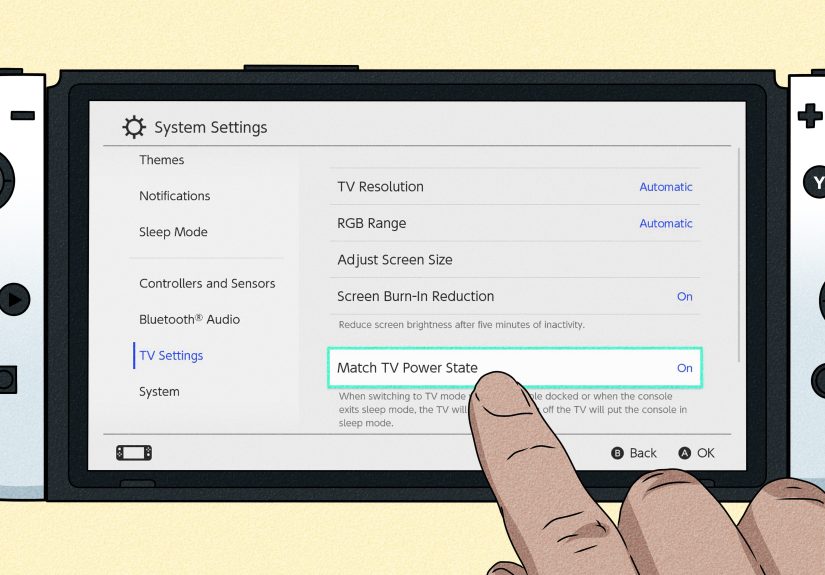
Nintendo’s system settings let you adjust TV resolution and related output options. In many cases, leaving TV Resolution on Automatic is the safest option. If your display is older or picky, you can also test a lower resolution manually.
Settings worth checking
- System Update: Install the latest system software.
- TV Resolution: Try Automatic first. If needed, test 720p or 1080p depending on your display.
- RGB Range: Leave it on Automatic unless you know your TV requires something specific.
- Screen Size: Adjust it after the image appears if the display is cut off.
To get there, go to System Settings, then check both System and TV Settings. If your Switch is working in handheld mode but struggling on the TV, this is one of the last easy fixes worth trying before you consider repair or replacement.
When it’s probably a hardware problem
If none of the seven fixes works, there is a good chance the issue is hardware-related. That could mean a failing dock, a damaged HDMI port, a bad AC adapter, or less commonly, a problem with the console’s USB-C connection.
Here are the biggest clues:
- The console works fine handheld but never outputs on any TV.
- Multiple HDMI cables and ports fail.
- The dock’s HDMI connection feels loose or damaged.
- The Switch does not charge correctly in the dock.
- The problem started after a drop, a spill, or a travel mishap.
At that point, replacing the HDMI cable is the cheapest test. Replacing the dock is the next logical step if you can borrow one or use an official replacement. If the console itself is the issue, professional repair is usually the most sensible move.
Final thoughts
A Nintendo Switch not connecting to your TV is annoying, but it is rarely mysterious once you break the problem into steps. Start simple. Confirm the model. Reconnect the dock properly. Check the HDMI input. Reset the power. Reseat the console. Test another cable or display. Then update the system and review TV settings.
In other words, don’t begin by assuming the console is doomed. Begin by assuming HDMI has once again chosen chaos. In many living rooms, that turns out to be exactly the problem.
Extra: Real-world experiences with a Nintendo Switch that won’t connect to the TV
One of the most common experiences with this problem is how ordinary it starts. Someone docks the Switch the same way they always do, expecting a game to pop onto the TV in a second or two. Instead, the handheld screen goes dark, the TV stays blank, and everybody in the room immediately becomes an amateur troubleshooter. The first reaction is usually dramatic: “The dock is broken.” But after a few minutes, the real culprit often turns out to be something hilariously small, like the TV still being set to the HDMI input used by a streaming stick.
Another very common experience happens after travel. A Switch gets packed, unplugged, moved to a hotel, a friend’s house, or another room, and suddenly it refuses to behave when it comes back home. In a lot of cases, the console itself is fine, but the cables were reconnected in the wrong order, the HDMI cable was swapped with another one behind the TV, or the dock started using a charger that can power the console but not properly support TV output. This is the kind of problem that makes people question their sanity, because handheld mode still works perfectly.
Then there is the protective-case trap. A lot of players love a good rugged case, which makes sense because the Switch travels everywhere. But many people do not realize that even a slightly bulky shell can stop the console from sitting fully in the dock. The result is a weird half-working setup: maybe the Switch charges, maybe the screen turns off, maybe nothing shows on the TV, and maybe everybody wastes 25 minutes blaming the HDMI port before finally removing the case and discovering that the console simply was not seated correctly. It is a humbling experience. Helpful, but humbling.
Families also run into a special version of this issue when multiple consoles, remotes, and HDMI devices share one television. In those setups, the Switch is competing with cable boxes, soundbars, receivers, streaming devices, and game consoles that all want their turn. It becomes very easy to plug the dock into one HDMI port, switch the TV to another, and accidentally diagnose a setup mistake as a console failure. The experience feels technical, but the fix is often just tracing one cable from the back of the dock to the back of the TV like a patient detective in sweatpants.
There are also cases where the fix feels almost suspiciously easy. A player tries everything, then unplugs the AC adapter for 30 seconds, reconnects the dock, restarts the Switch, and suddenly the TV signal returns as if nothing ever happened. Those are the moments that make people both grateful and slightly offended. Grateful because the console works again. Offended because they just spent half an hour preparing for a major hardware funeral when all it needed was a reset.
And finally, there is the experience nobody enjoys but plenty of people eventually face: realizing the problem actually is hardware. Maybe the HDMI port is loose. Maybe the dock got damaged in a move. Maybe the USB-C connection has seen one too many rough dockings. The reassuring part is that by the time you reach that conclusion, you can usually do so with confidence because you have already tested the easy fixes first. That makes the next step less frustrating. You are no longer guessing. You are making an informed decision, which is a lot more satisfying than angrily replacing random cables while the Switch judges you in silence.